Summary
- Skyvia: A powerful no-code Salesforce data loader that handles imports, exports, scheduled syncs, and backups in one place, making it a strong all-around choice for both admins and non-technical teams.
- Salesforce Data Loader: Salesforce’s native desktop tool for bulk imports and exports, best suited for admins who are comfortable with CSV files and manual, one-off data operations.
- Dataloader.io: A cloud-based Salesforce data loader that simplifies imports, exports, and scheduled jobs, especially handy for teams that want something lighter than Data Loader with minimal setup.
- Jitterbit’s Salesforce Data Loader: An enterprise-grade option built for large-scale, automated Salesforce data operations, often used when integrations and transformations go beyond simple CSV loading.
- Google Salesforce Connector: A straightforward connector for pulling Salesforce data into Google Sheets, ideal for quick reporting, analysis, and sharing without setting up a full ETL pipeline.
Wrangling data in and out of Salesforce might be a risky mission. One wrong move, and you’re staring at:
- Broken records;
- Missing updates;
- Cleanup job nobody wants to own.
And if you’ve ever tried to fix a bad import after the fact, it’s expensive in time and trust.
So, that’s the time when Salesforce data loaders come to the scene.
These tools are about importing, exporting, updating, and deleting data info in Salesforce.
You may load thousands of leads, sync updates from another system, or back data out for reporting, a data loader is what keeps everything moving without turning your org into a mess.
The catch is to find the one for day-to-day efficiency, accuracy, and how well your setup scales as volumes grow.
The simple CSV upload tools now have evolved into cloud-based platforms with scheduling, automation, validation, and even AI-assisted workflows. Pick well, and data work fades into the background. Pick poorly, and it becomes a constant source of friction.
In this guide, we’ll see how Salesforce’s native tools work, where third-party loaders shine, and how the top options compare across features and use cases.
Table of Contents
- Top 9 Data Loader Tools for Salesforce
- At a Glance: Salesforce Data Loader Feature Comparison
- How to Choose the Right Salesforce Data Loader for You
- Why Skyvia Excels as a Salesforce Data Loader
- Conclusion
Top 9 Data Loader Tools for Salesforce
In the section below, we’ll explore both native and third-party tools to help with your data loading tasks.
Skyvia
Skyvia Cloud Data Loader stands out as a premier tool on the market. To start with, it allows you to connect to your Salesforce org and perform the full suite of INSERT, UPDATE, UPSERT, and even DELETE operations.
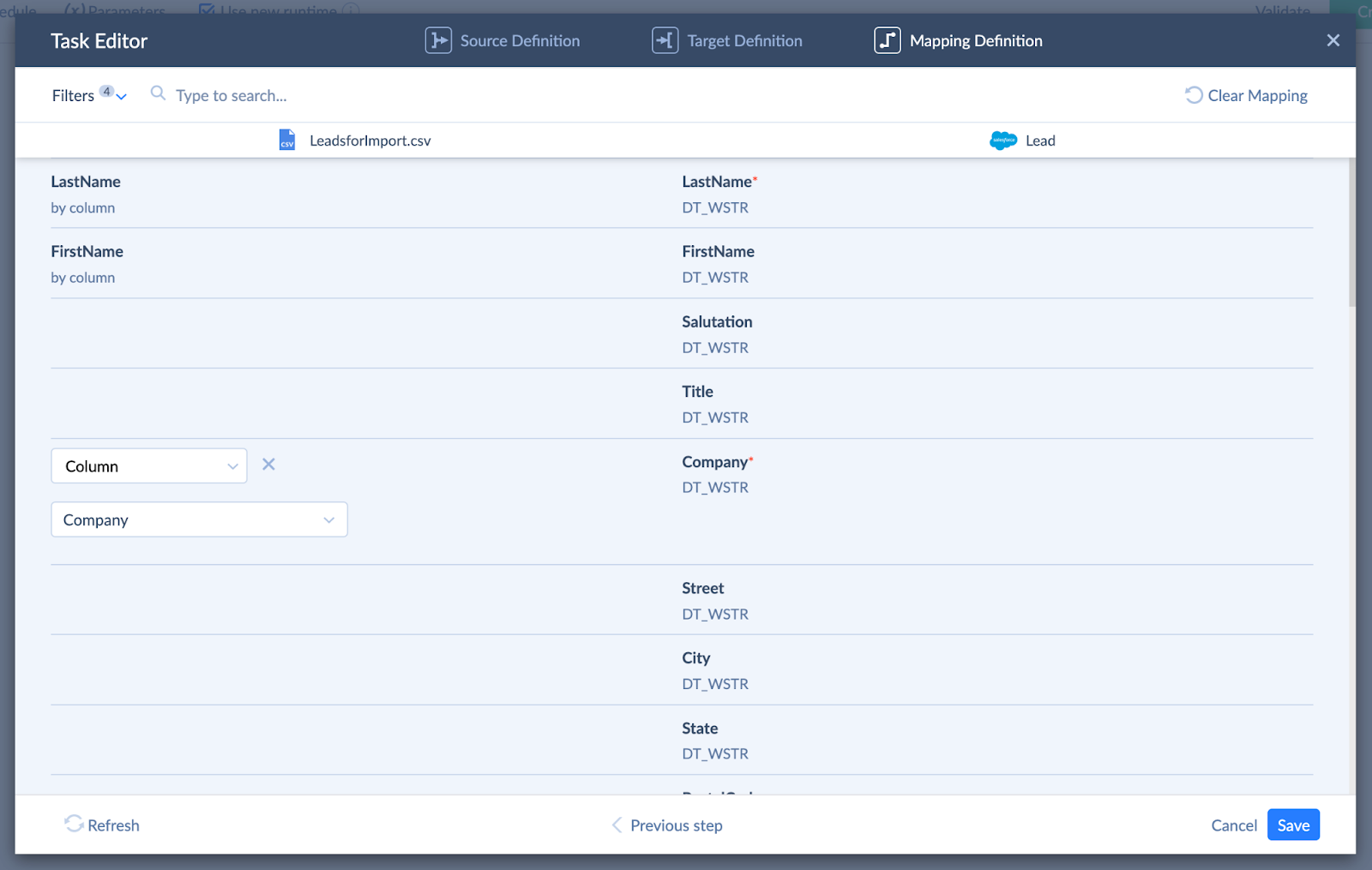
Beyond this, as part of the broader Skyvia platform, it can assume other functions that make it more than just a data loader. It can perform integrations, work as a replication tool, and maintain complete backups of your Salesforce orgs.
Skyvia offers a free tier, with enhanced functionalities available through paid plans starting at $79 per month. Unlike many alternatives, Skyvia’s pricing is based on a per business per month model rather than a per-user basis, which makes it extremely cost-effective.
Pros
- Cloud-based: No installation required; accessible from any browser.
- Versatile integration: Supports connection to over 200 data sources and destinations.
- Scheduling: Offers automated scheduling of data loading tasks.
- Ease of use: Skyvia is ranked among the top user-friendly ETL tools on the market by G2 Crowd. Capterra also marks the system as the one having the best ease of use and value for money.
Cons
- Subscription-based: Advanced features may require a paid subscription.
- Lack of hands-on guides: The platform’s extensive functionality is not fully covered by video tutorials, which some users may find complex.
Our Take
Skyvia really shines in real-world Salesforce setups where data changes often and need to stay in sync. It handles UPSERTs, relationships, and multi-step integrations without turning everyday updates into a risky operation.
For teams juggling frequent refreshes and ongoing system syncs, it feels more like a safety net than just another data loader.

Salesforce Data Loader
This is a Salesforce-native desktop tool designed for handling bulk data tasks, such as importing, exporting, and deleting records on the SF platform. Its capability to efficiently manage large volumes of information makes it a go-to solution for businesses working with extensive datasets.
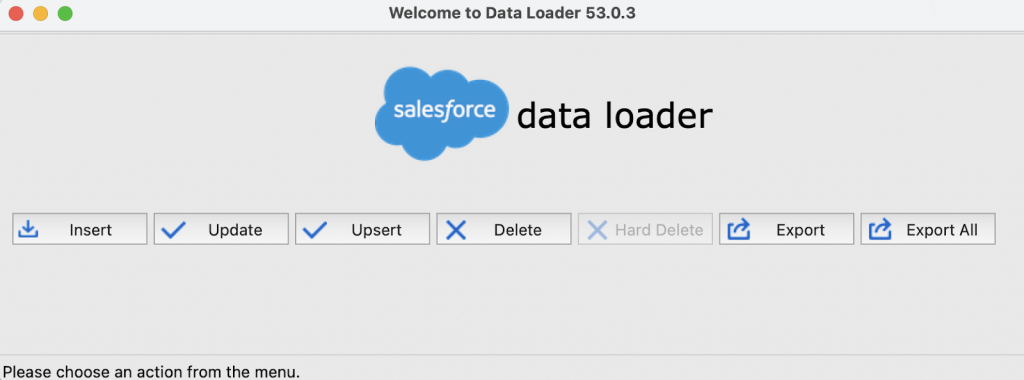
The tool runs natively on macOS and Windows, with full GUI support on both platforms, but command-line scheduling is available only on Windows.
Available as a free download from Salesforce, it’s included at no additional cost with base licensing and is automatically updated with every corporate release cycle.
Pros
- High volume handling: Capable of importing, exporting, updating, and deleting up to 5 million records.
- Broad object support: Supports a wide range of standard and custom objects.
- Advanced features: Includes functionalities like field mapping and batch processing.
Cons
- Technical complexity: May present a steeper learning curve for non-technical users.
- Installation required: Must be installed locally on your machine.
- Scheduling restrictions: No native scheduling in the GUI, CLI-based scheduling is required.
- macOS CLI limitation: Mac users lack native scheduling support.
Our Take
Salesforce Data Loader does its job best when you’re dealing with big, straightforward data pushes in and out of Salesforce. It’s reliable for bulk imports and exports, especially in sales and marketing scenarios where volume matters more than finesse. Just be ready to roll up your sleeves a bit. It’s powerful, but not very forgiving if something goes wrong.
Dataloader.io
Dataloader.io is a web-based application developed by MuleSoft, which is now a part of Salesforce. Being cloud-based, it requires no installation: with Dataloader.io, users can perform INSERT, UPDATE, UPSERT, and export operations directly from their browser. Additionally, it supports the creation of scheduled tasks that can automatically import or export information from connected sources such as Box, Dropbox, FTP, and SFTP servers.
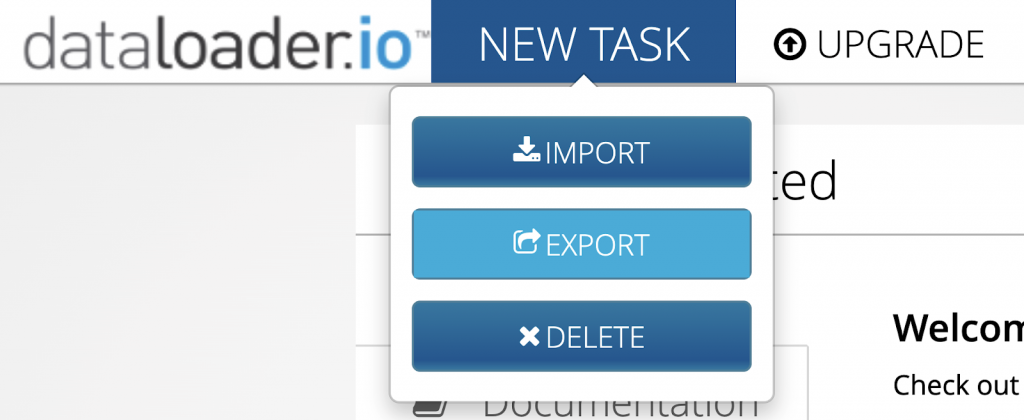
Unlike the Salesforce Data Loader, which is a free tool included with SF subscriptions, Dataloader.io operates on a freemium model. The Free tier allows up to 10,000 records per month and includes basic features. For enhanced capabilities, there are two paid options:
- Professional: Priced at $99 per user per month; up to 100,000 records monthly; includes features such as task scheduling and integration with cloud storage services.
- Enterprise: $299 per user per month; unlimited number of records; includes advanced functionalities like support for SFTP and managing up to 10 Salesforce accounts.
Pros
- Web-based: No installation required; operates entirely in the cloud.
- Ease of use: Simple interface with drag-and-drop functionality.
- Scheduling: Supports scheduling of data loads.
Cons
- Record limitations: The free version has limitations on the number of records per import.
- Feature restrictions: Advanced features are available only in paid versions.
Our Take
Dataloader.io is a solid pick when simplicity is the top priority. It’s easy to set up, runs in the cloud, and handles scheduled imports and exports without much babysitting. For non-technical teams that just want data moving on a schedule without touching scripts or desktop tools, it does exactly what it promises.
Jitterbit’s Salesforce Data Loader
This cloud data loader is a free tool offered by Jitterbit. To access it, you need to provide your contact information and sign up for a Jitterbit Harmony account.
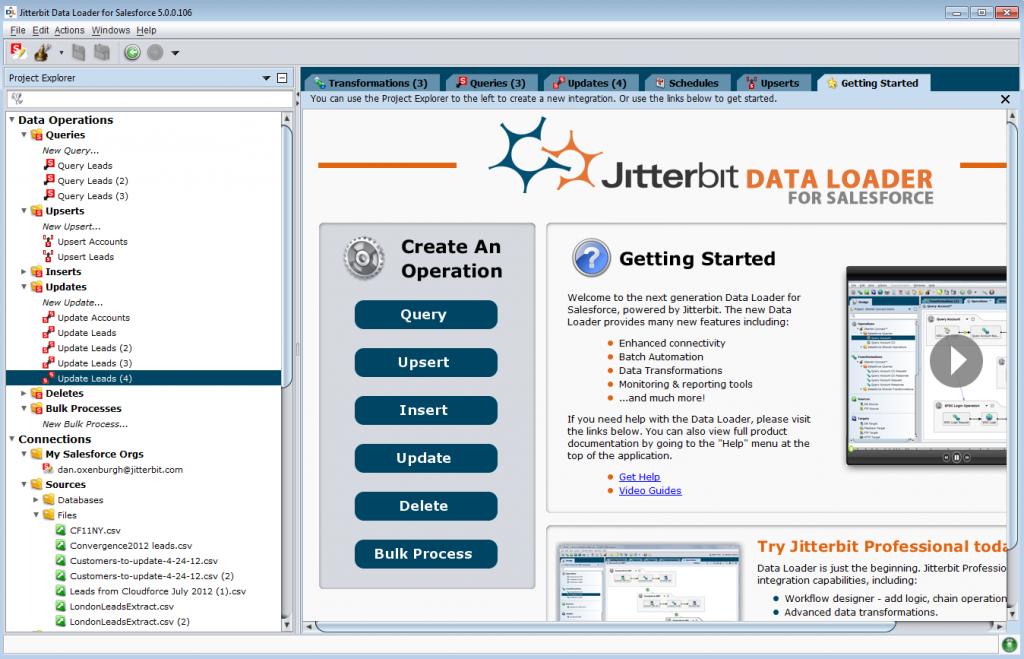
Once registered, you can download the tool for Windows. It’s important to note that as of May 2024, Jitterbit has discontinued the macOS version of Data Loader. The last macOS version (10.72) was a 32-bit application, which is incompatible with macOS 10.15 Catalina and later versions. Therefore, macOS users would need to use an older version of macOS or run Windows on a virtual machine to utilize the tool.
Installing data loader on a compatible system allows you to perform INSERT, UPDATE, UPSERT, DELETE, and export (query) operations with Salesforce. You can execute these tasks multiple times, schedule them, and connect to sources such as local files, FTP servers, and file-sharing services.
Pros
- Open-source: Free to use with a supportive community.
- Automation: Allows scheduling of data migration tasks.
- Easy-to-use interface: Intuitive design simplifies the migration process.
Cons
- Limited support: Being open-source, official support may be scarce.
- Resource intensive: Requires significant system resources during operation.
- Limited accessibility on macOS: Because of additional conditions, it can be challenging to utilize on Mac.
Our Take
Jitterbit’s Salesforce Data Loader sits nicely between simple loaders and full-blown integration platforms. It’s a good fit for larger migrations and recurring bulk jobs where data needs to move between Salesforce and databases without deep technical setup. You get more control than basic tools, without the overhead of building everything from scratch.
Google Salesforce Connector
If your business operates within Google Workspace (formerly G Suite), you might consider using the Google Salesforce Connector to perform data loading tasks. This add-on is available through the Google Workspace Marketplace and can be easily installed into Google Sheets. Once installed, you can enable the add-on within a Google Sheet to begin using its features.
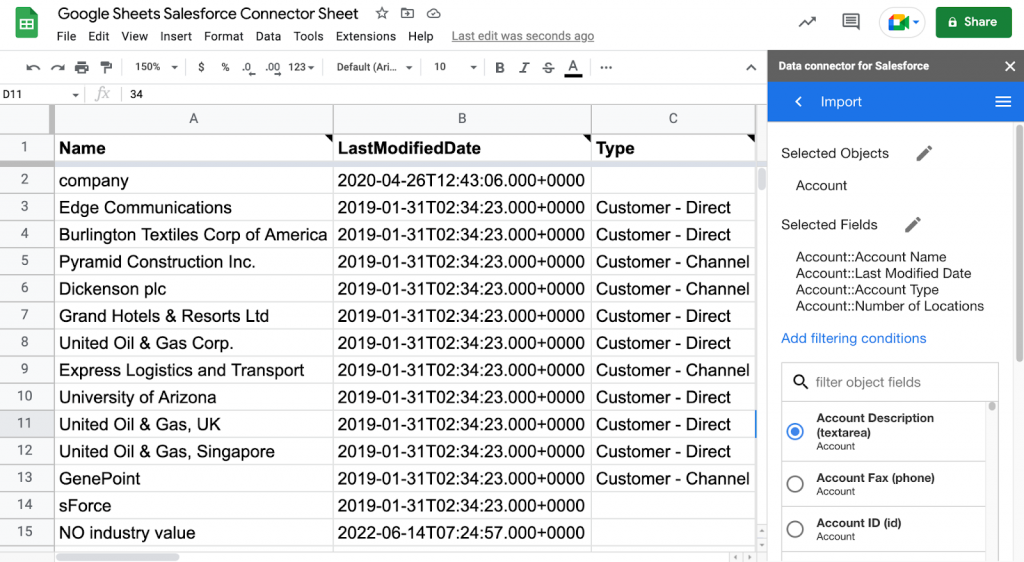
The Google Salesforce Connector performs simple tasks including INSERT, UPDATE, and UPSERT records to Salesforce, and query records into the Google Sheet (that can then be exported).
While the query/export functionality can be scheduled, the other functions must be performed manually.
Pros
- Seamless Google Workspace integration: Works natively within Google Sheets.
- Simple & user-friendly: Easy installing from the Google Workspace Marketplace; requires no technical expertise.
- Query: Allows querying Salesforce data directly into Google Sheets.
- Export capabilities: Supports scheduled data imports.
Cons
- Manual data loading: No built-in automation for INSERT, UPDATE, and UPSERT tasks.
- Limited functionality: No mass DELETE or UNDELETE functions; lacks advanced error handling, transformation, and deduplication features.
- API call limits: Relies on Salesforce API limits, meaning frequent or large-scale operations might consume API calls quickly.
Our Take
The Google Salesforce Connector is all about convenience. It works best when you’re dealing with smaller datasets and want Salesforce data right inside Google Sheets for quick analysis or reporting. For analysts and marketers living in Google Workspace, it’s an easy way to explore numbers without setting up a full data pipeline.
CloudExtend’s Excel for Salesforce
Like Google’s connector option above, CloudExtend’s Excel for Salesforce is a point solution designed for businesses using Microsoft 365. Installing this add-in allows users to manage SF records directly within Excel.
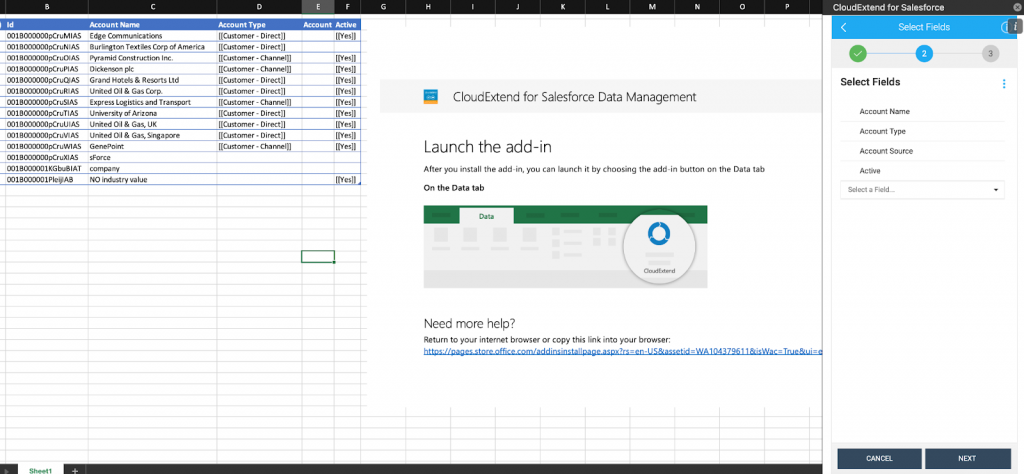
Unfortunately, this tool does not support any form of scheduling or automated processing: each INSERT, UPDATE, UPSERT, and query needs to be run manually. Nevertheless, these processes can be easily created as templates with just a couple of clicks.
Although its free version allows for exporting Salesforce data into Microsoft Excel, performing any form of INSERT, UPDATE, or UPSERT functions will require a paid subscription, starting at $149 per user per year.
Pros
- Seamless Microsoft 365 integration: Designed for Excel users; works as an Excel add-in.
- Easy installation & user-friendly UI: Quick setup via the ‘Get Add-ins’ feature in Excel; intuitive, non-technical interface.
- Export and query directly in Excel: Enables live querying of Salesforce data into Excel.
- Template-based processing: Allows for saving query and updating templates for repetitive tasks.
Cons
- No automation: All data operations should be performed manually.
- Limited functionality: No mass DELETE or UNDELETE functions; lacks advanced transformation and deduplication features.
- API call limits: Since it relies on Salesforce API calls, heavy usage may consume API quotas quickly.
Our Take
CloudExtend’s Excel for Salesforce is a practical choice when most of the work happens in spreadsheets. It’s well-suited for small to mid-sized loads and everyday Salesforce updates handled directly in Excel. For teams on Microsoft 365 that want a straightforward, budget-friendly option without extra complexity, it gets the job done.
G-Connector
An alternative to Google’s own tool, G-Connector by Xappex, is also available as an add-in in the Google Workspace Marketplace.
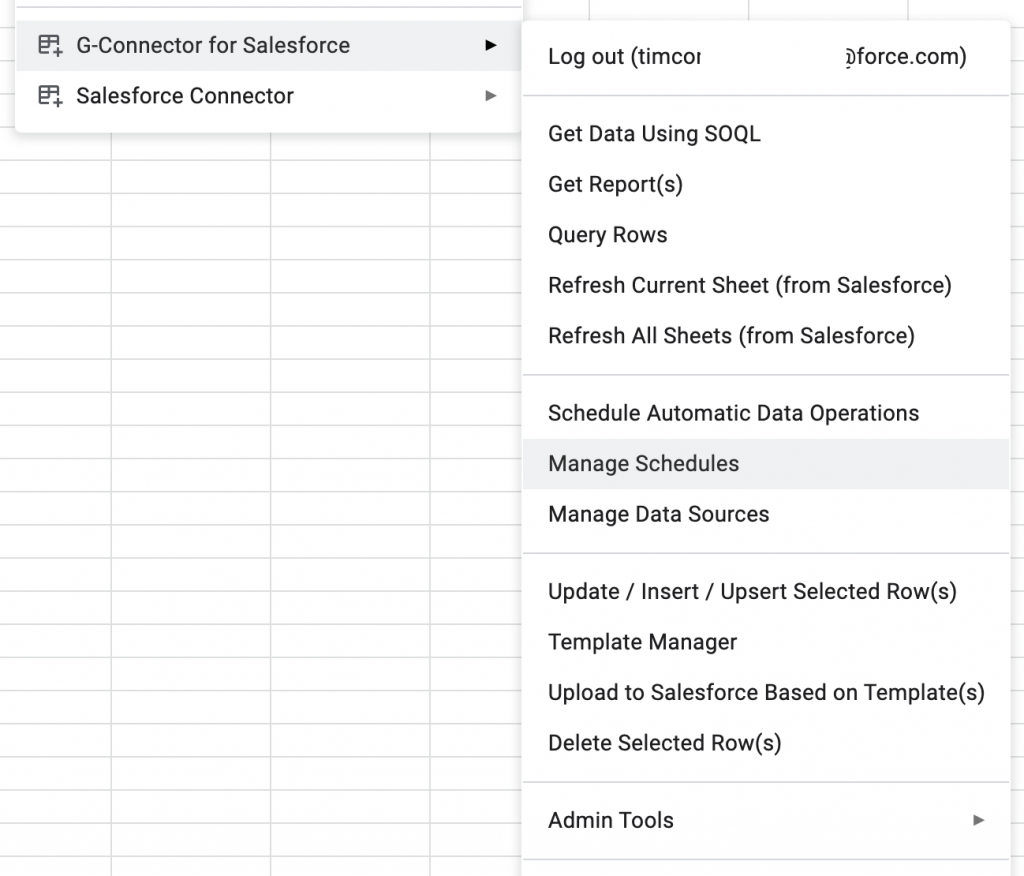
Unlike Google’s option, G-Connector is not 100% free. If you want to do any more than just query and export data from Salesforce into a Google Sheet, you will need to pay for this extra functionality. The Premium Lite Plan, priced at $99 per user per year, supports uploading records from Google Sheets to Salesforce, enables refreshing entries across all sheets in the workbook with one click, and provides administrative feature control for users.
With a Premium Full subscription ($299 per user per year), you will be able to INSERT, UPDATE, UPSERT, and export data to and from your Salesforce org into a Google Sheet easily, and on an automated schedule if required.
Pros
- Seamless Google Workspace integration: Easy-to-use solution for businesses using Google Workspace.
- Flexible pricing model: Basic functionality of querying and exporting reports is free, while additional features require paid subscriptions.
- Comprehensive operations (paid plans): Supports INSERT, UPDATE, UPSERT, DELETE, and export (query) operations; offers mass data processing.
Cons
- Notable free plan limitations: Only 2 operations are supported – querying and exporting data from Salesforce.
- Not a full-scale data loader: No advanced data transformation, field mapping, or deduplication features found in more comprehensive tools.
- Pricing considerations: Access to full automation features requires the Premium Full subscription ($299/year), which may be costly for small businesses.
Our Take
G-Connector is a handy option for teams that live in Google Sheets and want Salesforce data to show up there on a schedule. It works well for analysts and sales teams who need regular data pulls and automated reports, without turning spreadsheets into a fragile workaround or a manual chore.
XL-Connector
In response to market demands, Xappex also offers a solution for Excel enthusiasts – XL-Connector, a robust Excel add-in that enables seamless integration between Salesforce and Microsoft. Designed to enhance productivity, it allows users to manipulate, analyze, and manage data without switching platforms. With XL-Connector, you can securely export, import, and refresh SF records directly within your familiar Excel environment.
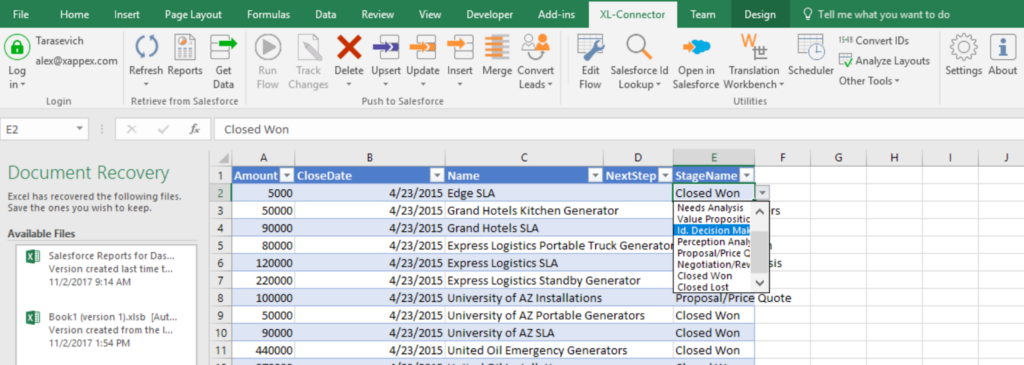
Just like with G-Connector, Xappex offers three pricing plans for XL-Connector, with a similar breakdown of features. Within the Free plan, you can pull unlimited reports and query any data from Salesforce.
Subscribing for the Team Player plan for $99 per user per year will enable you to create, update, and delete records in SF using templates (these, however, must be created in Enterprise Admin). You will also be able to refresh information across multiple worksheets in one click, and control feature visibility for your users.
Finally, with an Enterprise Admin subscription ($299 per user per year), you will be able to perform mass operations on Salesforce records, including create, UPDATE, UPSERT, DELETE, and export; schedule automatic data refreshes and uploads; access Salesforce metadata, including fields, picklists, and validation rules; and create task templates for non-technical users.
Pros
- Seamless integration: Directly connects Salesforce with Excel.
- Automation capabilities: Supports scheduling of data operations.
- Metadata tools: Provides tools for managing Salesforce metadata.
- Cross-platform availability: Available as XL-Connector 365 for Mac users and Excel Online.
Cons
- Learning curve: May be challenging for users unfamiliar with SOQL or Excel’s advanced features.
- Pricing Considerations: Access to advanced features requires a paid subscription.
- Dependency on Excel: Requires a licensed version of Microsoft Excel.
Our Take
XL-Connector is built for teams that rely heavily on Excel and need Salesforce operations to run at scale. It’s especially useful for scheduled bulk jobs and repeatable mass updates, and it gives Salesforce admins a practical way to handle data and metadata without leaving their spreadsheets.
Dataloader.ai
Dataloader.ai from Clientell is an innovative tool that enhances Salesforce’s user experience through advanced technologies. This cloud-based tool offers GPT-powered natural language processing that allows the execution of data operations with simple, conversational prompts.
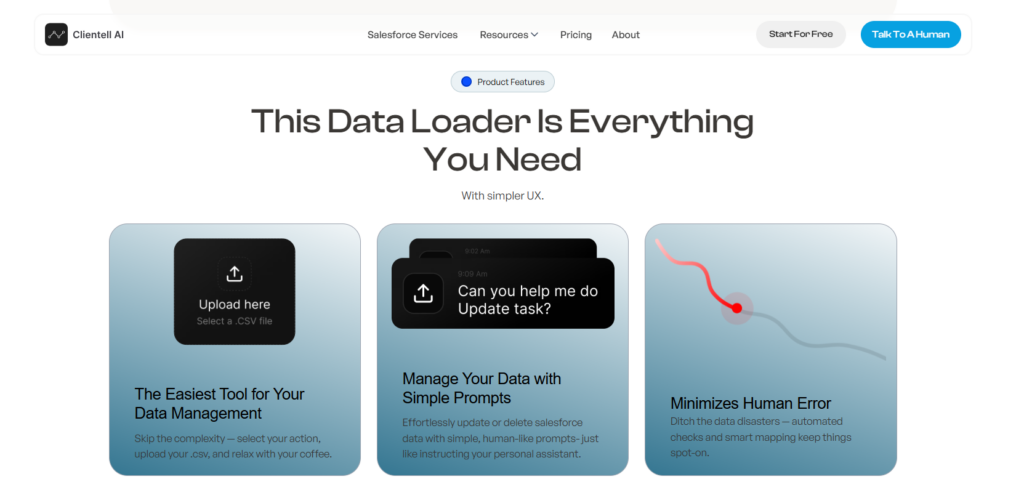
Among its prominent features are also intelligent data mapping to reduce manual configuration, and robust security measures ensuring information privacy and protection.
Pros
- Cloud-based: Requires no local installation.
- Intuitive user experience: Simple data management with a natural language interface.
- Secure infrastructure: Compliance with SOC II Type II, GDPR, and ISO standards.
Cons
- Emerging tool: May lack some advanced features present in established data loaders.
- Pricing information: Not readily available, requires direct contact for quotes.
Our Take
Dataloader.ai stands out for teams that care a lot about security but still want things to stay simple. It keeps Salesforce data operations approachable with a clean interface, while putting strong guardrails around access and data handling so you’re not trading ease of use for peace of mind.
At a Glance: Salesforce Data Loader Feature Comparison
Now that we’ve explored the key aspects of each tool, let’s compare them in a summary table to help you choose the most suitable option for your needs.
| Tool | Type | Pricing Model | Key Features |
|---|---|---|---|
| Skyvia | Third-party (Cloud) | Freemium / Paid | Large record volumes, scheduling, UPSERT, data relationships, automation, backups, cross-system sync |
| Salesforce Data Loader | Native | Free | Bulk import/export, up to millions of records, CLI support, manual operations |
| Dataloader.io | Third-party (Cloud) | Freemium / Paid | Scheduled imports/exports, browser-based UI, CSV handling, basic automation |
| Jitterbit’s Salesforce Data Loader | Third-party (Cloud) | Paid | Large-scale migrations, recurring syncs, database integration, bulk operations |
| Google Salesforce Connector | Third-party (Google Sheets add-on) | Paid | Pull Salesforce data into Sheets, refresh on demand, lightweight reporting |
| CloudExtend Excel for Salesforce | Excel Add-in | Paid | Excel-based editing, insert/update Salesforce records, small-to-mid data volumes |
| G-Connector | Google Sheets Add-on | Paid | Scheduled data pulls, automated reports, Salesforce ↔ Sheets sync |
| XL-Connector | Excel Add-in | Paid | Mass operations, scheduling, metadata management, admin-focused workflows |
| Dataloader.ai | Third-party (Cloud) | Paid | Secure data handling, user-friendly UI, controlled access, simplified Salesforce data ops |
How to Choose the Right Salesforce Data Loader for You
There’s no single “best” Salesforce data loader and no one scenario for selecting the “one”. It really comes down to how often you move data, how complex the workflows are, and where you prefer to work day to day. A quick reality check on the use case usually makes the right option pretty obvious.
For the Occasional User or Small Business
If data loads are rare and fairly simple, keep it lightweight. Salesforce’s Data Import Wizard, or the free tiers of tools like Skyvia or Dataloader.io, are more than enough to get data in and out without extra overhead.
For the Salesforce Admin or Power User
Convenience and power are two sides of the same coin, and admins always need both.
The native Salesforce Data Loader is solid for heavy, one-off jobs, while cloud-based tools like Skyvia, Dataloader.io, or Jitterbit simplify recurring updates, relationships, and scheduled tasks without living in CSV files.
For the Data-Driven Enterprise
When Salesforce is just one piece of a bigger data picture, you’ll want something more comprehensive. A platform like Skyvia can handle complex workflows, multiple data sources, automation, and security in one place, without stitching together half a dozen tools.
For the Excel Guru
If spreadsheets are your comfort zone, don’t fight it. Tools like XL-Connector let you manage Salesforce data directly from Excel, making bulk updates, scheduled jobs, and even metadata work feel familiar and efficient.
Why Skyvia Excels as a Salesforce Data Loader
Skyvia Cloud Data Loader is a versatile, all-in-one solution that excels among Salesforce import tools. Let’s take a closer look at how real businesses have benefited from Skyvia’s capabilities.
Broad integration options, including in-house and legacy systems
With Skyvia Import, businesses can connect Salesforce with cloud apps and databases for seamless data transfers. A real estate company leveraged this feature to enable two-way synchronization between their legacy ERP system, Salesforce, and Mailchimp, enhancing operational efficiency.
Near real-time synchronization
A4 International, Inc., a Salesforce consulting partner, needed to migrate data from external systems to SF and establish their real-time integration. Using Skyvia, they successfully set up hourly synchronization, ensuring customers always had up-to-date information.
Automation & scheduled data transfers
For companies needing regular Salesforce updates, Skyvia’s automation features are a game-changer. Cirrus Insight, a sales enablement platform, used Skyvia to automate daily tasks, including merging Salesforce accounts and synchronizing data across multiple systems – saving time and reducing manual effort.
Accurate mapping for consistency
Echo Technology Solutions, a consulting firm, needed to sync customer details between Salesforce and SQL Server to improve data visibility and accuracy. With Skyvia’s robust mapping and transformation tools, they created ETL workflows that ensured precise and error-free updates across platforms.
Conclusion
Working with Salesforce data is a bit like traffic. The smoother it flows, the less you notice it. Select the wrong data loader, and suddenly every import feels like a jam you didn’t plan for.
As this guide shows, there’s no super solution for every business scenario. Just the right one for how often you move data, how complex things get, and who’s behind the wheel.
Some teams get by with native tools or spreadsheets. Others need something more flexible as volumes grow and systems multiply. That’s where platforms like Skyvia make sense. They handle today’s jobs without becoming tomorrow’s bottleneck.
The good news is that you don’t have to commit upfront. Try a few options, see what fits your workflow, and choose what keeps data moving without drama. If you want a strong place to start, Skyvia’s free tier lets you test-drive a setup that can grow with you.

FAQ for Data Loaders for Salesforce

Which data loader is best for real-time synchronization?
Dataloader.ai offers AI-powered automation for real-time updates. Skyvia and Jitterbit also support near real-time sync via API-based integration and scheduling. Most traditional loaders (e.g., Salesforce Data Loader) lack real-time capabilities.
What’s better: Salesforce native tools or third-party loaders?
Salesforce native tools (Data Loader, Import Wizard) are free, secure, and well-integrated but limited in automation and scalability. Third-party loaders offer advanced features, like real-time sync, scheduling, and better UX, making them ideal for complex workflows.
What criteria should I consider when choosing a data loader?
Key factors include volume capacity, supported DML operations, automation & scheduling, error handling, data transformation capabilities, integration with other tools, security compliance, and ease of use. Choose a tool that meets your business needs and technical expertise.
How do I handle lookup relationships when importing data?
Use External IDs to link records instead of manually retrieving Salesforce IDs. Tools like Skyvia offer lookup mapping, automatically resolving relationships during import. Some loaders require preloading parent records first to maintain data integrity.
Is it possible to automate data loads?
Yes! Tools like Skyvia, Jitterbit, and Dataloader.io support scheduled tasks for automated imports, exports, and updates. Salesforce Data Loader allows CLI-based scheduling (Windows only), while some basic tools require manual execution.