Summary
- Manual MCP Server – Maximum control, maximum responsibility: you get full flexibility, but you also inherit OAuth headaches, API churn, and long-term maintenance.
- Skyvia MCP Server – Same outcome, radically less effort: Google Sheets stays simple while Skyvia quietly handles the protocol, security, and plumbing behind the scenes.
If you’ve ever used Google Sheets as a “temporary solution” that somehow became mission-critical, you’re not alone. What starts as a quick table for tracking numbers quietly turns into a reporting layer, a decision hub, and, occasionally, a source of mild panic when the data goes stale. That’s exactly where the idea of a Google Sheets MCP server starts to sound less abstract and more… necessary.
At its core, this is about getting Sheets to talk to your real data without copying, pasting, exporting, or asking “who updated this cell?” for the fifth time today. MCP servers promise that connection – live, programmatic, pragmatic, and, most importantly, powerful. Still, they also come with a level of technical gravity that not every team wants to sign up for.
In this guide, we’ll unpack what a Google Sheets MCP server is, why people reach for it, and where the line is between “impressive engineering” and “unnecessary complexity.” Then we’ll look at a more straightforward path that gets you the same outcome – fresh, reliable data in Sheets – without turning your Spreadsheet into a software project.
Table of Contents
- What is an MCP Server?
- Why Connect Google Sheets to a Data Source?
- How to Connect Google Sheets: The Hard Way vs. The Easy Way
- Why Skyvia is the Best Choice for Google Sheets Integration
- Conclusion
What is an MCP Server?
An MCP (Model Context Protocol) Server is, at its core, a bridge with one job – to let one system safely talk to another without either side needing to know all the messy details.
In our case, the Google Sheets MCP server is what helps spreadsheets to be more communicative, whether it’s a database, an API, or another service that normally lives outside the CSV world.
It’s important to distinguish between the MCP Server and the Endpoint. The server does the hard work, while the endpoint is basically the addresses or pipes (like /mcp or the old /sse route) that let messages travel back and forth using JSON-RPC 2.0.
Now for the part that actually matters. The why.
An MCP Server exists to let you create, read, and update spreadsheet data programmatically, using live data from somewhere else. Not copied yesterday. Not exported manually. Real data, pulled or pushed on demand. That means a spreadsheet can stop being a static file and start behaving like a lightweight interface on top of your real systems.
For teams, this changes the role of tools like Google Sheets. Instead of being the end of the data journey, Sheets becomes a working surface – one that can reflect what’s happening in your database, trigger updates, or even write changes back in a controlled way.
Under the hood, MCP Servers are designed to be safe and scalable. They decide what gets exposed, lock down who can see what, and maintain clear agreements between systems so nothing surprises anyone. From the outside? All that machinery stays invisible. You request data, it appears where you wanted it, end of story.
Why Connect Google Sheets to a Data Source?
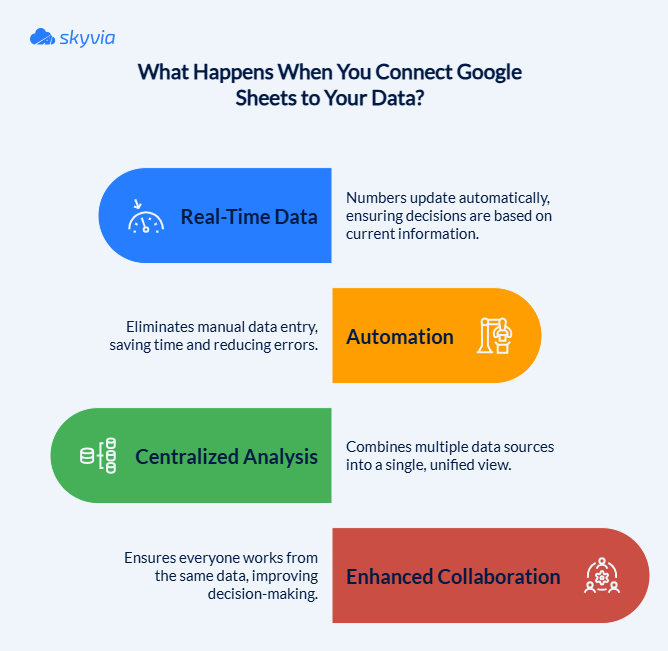
On its own, Google Sheets is a great scratchpad. But once it’s connected to a real data source, it becomes something else entirely – a live workspace that reflects what’s actually happening in your systems, not what someone remembered to paste in yesterday.
That is why teams keep wiring Sheets into databases, APIs, and cloud platforms.
Benefit 1: Real-Time Data
Spreadsheets age badly when data moves fast. A report that was accurate this morning can already be misleading by lunch.
When Google Sheets pulls data directly from a source, that lag disappears. Numbers update as the source changes, whether that’s CRM records, financial metrics, or operational data. You’re no longer debating which version is “the latest”. The Sheet is the latest, and decisions are based on what’s true right now, not what was exported last week.
Benefit 2: Automation
Manual data entry doesn’t just waste time – it creates tiny, hard-to-spot errors that compound over time.
A connected sheet removes that entire class of problems. Data flows in automatically, on a schedule or on demand, without copy-paste rituals or fragile one-off scripts. Reports refresh themselves. Tables stay aligned. And the time people used to spend “maintaining the spreadsheet” can finally go back to analysis, planning, or fixing things.
Benefit 3: Centralized Analysis
Most insights naturally don’t live in a single system. Sales data is in one place, marketing metrics in another, operational numbers somewhere else entirely.
Connecting Google Sheets to multiple data sources lets you pull all of that into one view. You can combine CRM insights, database entries, and campaign metrics into one workbook instead of drowning in the CSV tab apocalypse.
Benefit 4: Enhanced Collaboration
Most collaboration problems aren’t about people. They’re about everyone working off a slightly different version of the truth. Everyone is right separately, but the whole is a beautiful disaster.
When Google Sheets is connected directly to a data source, the Sheet becomes a shared window into what’s happening right now. No one needs database access, SQL skills, or a fresh export “just to double-check.” The numbers update, the conversation continues, and decisions happen in the open.
The data stays centralized, and conversation stays human.
How to Connect Google Sheets: The Hard Way vs. The Easy Way
There are two very different paths to connecting Google Sheets to external data through an MCP Server. One gives you absolute control and flexibility. The other gives you your evenings back. In our Google Sheets MCP server setup guide, we will unpack both of them and will do the hard one first because understanding it makes the second option much more appealing.
The Hard Way (Manual MCP Server Setup)
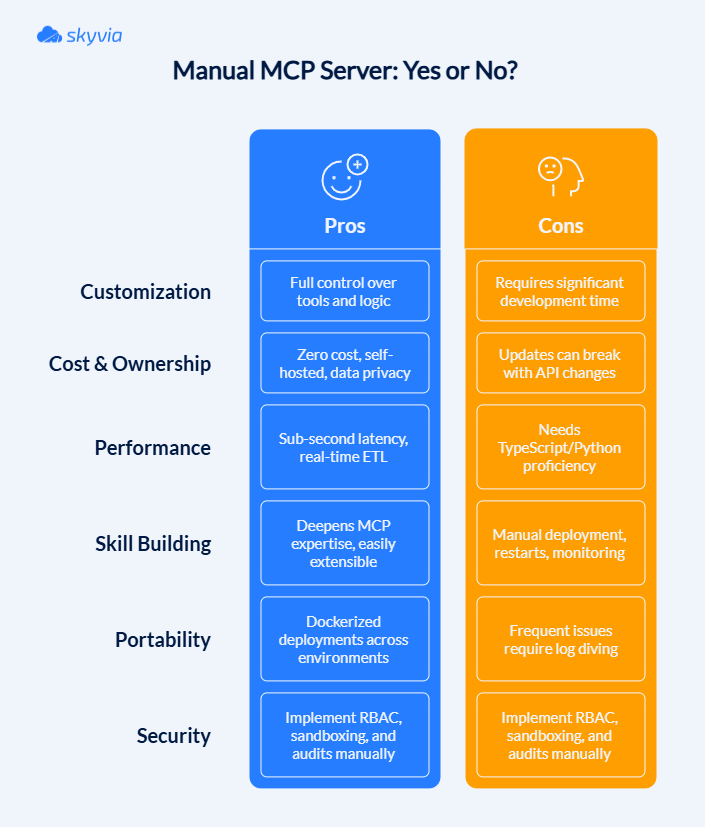
This is the developer-first route. You’re not “connecting a sheet” so much as building a small integration platform from scratch and then teaching Google Sheets how to talk through it.
It’s powerful, elegant in the right hands, and completely unforgiving if you’re not comfortable living close to APIs, credentials, and config files.
Step-by-Step Guide
At a high level, here’s what this path involves:
- Create and configure a Google Cloud Platform project
You start in the Google Cloud Console. New project, billing awareness, IAM basics. That is where everything downstream gets authorized or blocked.
- Enable the required APIs
You explicitly turn on the Google Sheets API and Google Drive API. If one is missing, nothing works, and the error messages won’t always tell you why.
- Configure OAuth consent and credentials
This is where many setups slow down. You define scopes, configure the consent screen, create OAuth 2.0 credentials, and wire up refresh tokens. One misstep here means endless re-auth loops.
- Build the MCP Server itself
Using Node.js or Python and the official MCP SDK, you implement a backend service:
- Define tools like “read range,” “write cells,” or “append rows.”
- Validate inputs and outputs.
- Handle authentication, retries, and rate limits.
- Expose everything through the MCP protocol, so AI clients can call it safely.
- Run, test, and debug locally
You test with inspectors, restart clients when configs change, chase down range-notation errors, and verify that Sheets updates are real and not hallucinated.
- Maintain it over time
APIs change. Tokens expire. Requirements grow. Every new feature is code you own and support.
This method is undeniably powerful. It gives you full control over how Google Sheets reads, writes, and syncs data. For experienced developers building custom AI-driven workflows, that control can be worth the effort.
But it also demands solid API knowledge, comfort with backend code, and a willingness to maintain the integration long after the first “it works” moment. For most teams, the complexity isn’t in building it once – it’s in keeping it alive.
The Easy Way (Using Skyvia’s No-Code Connector)
Let’s level-set before walking through this.
Skyvia’s a no-code platform designed for people who need data shuttling between systems but lack enthusiasm (you can save it for tasks that need your 100% involvement) for making it their second job. Choosing it, you’re navigating an interface that already knows how to communicate with databases, SaaS platforms, file systems, and spreadsheets (more than 200 ready-to-go connectors, and the number is growing).
The point is data reaching its destination reliably, not you acquiring permanent ownership of mysterious integration scripts that only run when Mercury isn’t in retrograde.
What makes this especially relevant here is that Skyvia allows you to quickly create MCP endpoints to BigQuery, PostgreSQL, and other critical places where a bit of AI magic is needed. Prepare for:
- No backend code.
- No OAuth handling in your app.
- No MCP SDK implementation.
- No server hosting or maintenance.
Skyvia handles authentication, schema exposure, security, and availability, while your AI client interacts with Google Sheets through a standard MCP interface.

Step-by-Step Guide
Skyvia provides a managed MCP endpoint that can act as a Google Sheets MCP Server. Instead of building and hosting your own backend, you configure access through Skyvia’s UI and expose Google Sheets as an MCP-compatible tool for AI agents.
Step 1: Connect Google Sheets to Skyvia
Before anything MCP-related happens, Skyvia needs permission to work with your spreadsheets. This step is about giving it that access, nothing more.
- Log in to your Skyvia account.
- Click + Create New and choose Connection.
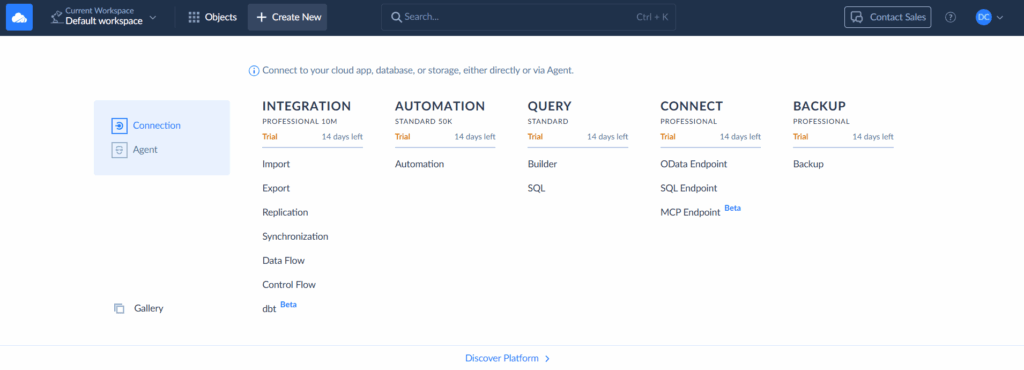
- In the connector list, search for Google Sheets and select it.
- Choose the Google account you want to use, sign up, and select the Spreadsheet to let the AI work in.
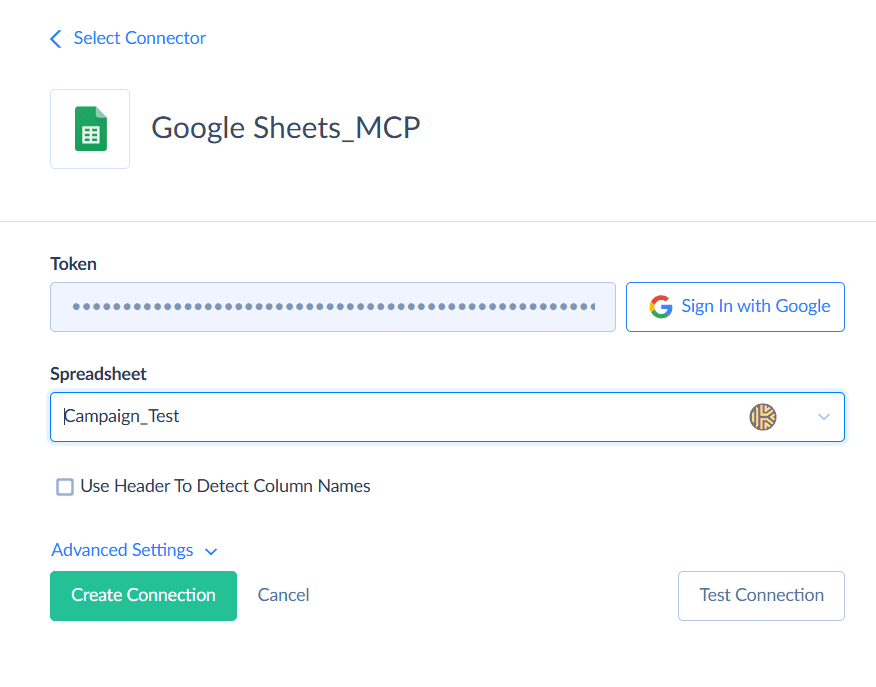
- Give the connection a clear name and save it.
Once this step clicks through successfully, Skyvia’s got keys to your Google Sheets – reading and writing data whenever needed without asking permission every time. Everything that follows rides on this foundation.
Step 2: Create an MCP Endpoint
Next, expose the Google Sheets connection as an MCP endpoint.
- Click + Create New and select MCP Endpoint.
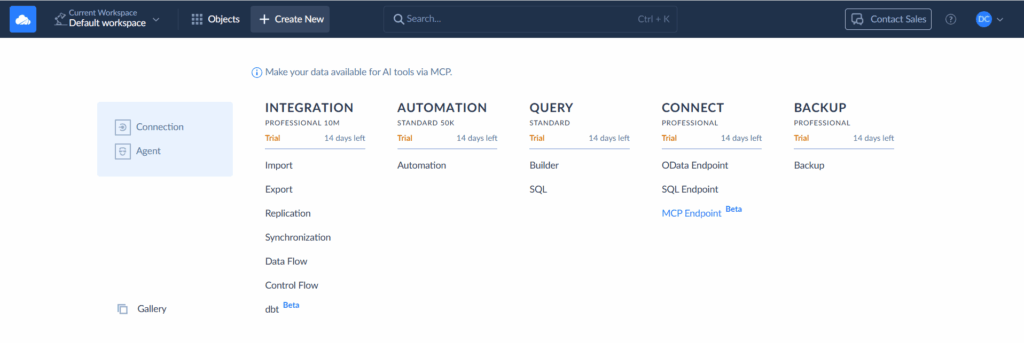
- Choose the Google Sheets connection created in Step 1.
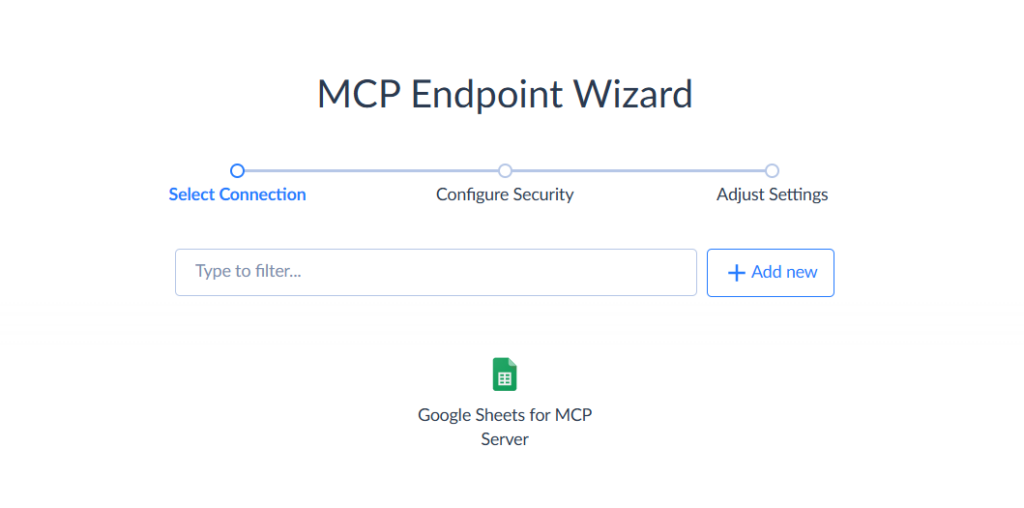
- Configure endpoint access:
- Choose whether the endpoint is restricted to specific IP addresses or open to any IP.
- Choose an easy-to-scan name so later, when you go through all the Skyvia Objects, you can detect it in seconds.
- Click Save Endpoint. Skyvia now generates:
- A unique MCP endpoint URL.
- Credentials required to authenticate requests.
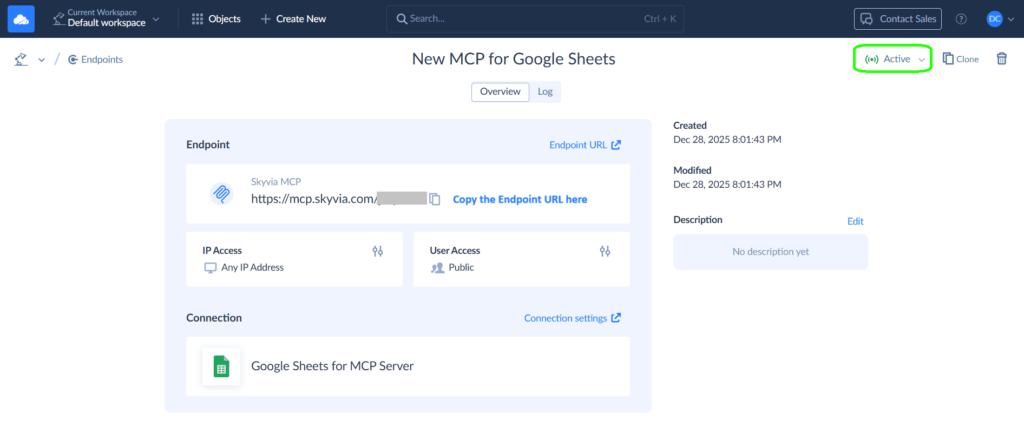
This endpoint functions as your Google Sheets MCP Server.
Note: Make sure your new, shiny MCP server for Google Sheets is active in the right upper corner.
Step 3: Connect the MCP Endpoint to Your AI Client
You can now register the Skyvia MCP endpoint in an MCP-compatible client such as Claude Desktop or Cursor. Today, we’re working with Claude Desktop.
- Press the hamburger menu icon hanging out in Claude Desktop’s top left corner.
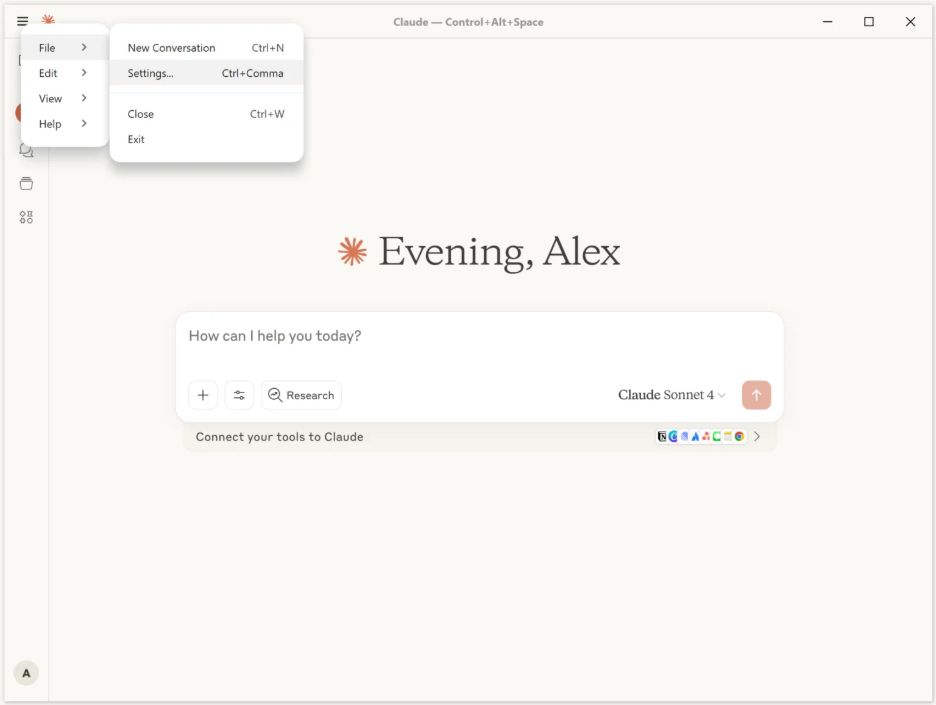
- Press File, then select Settings from the options.
- Inside the Settings window, locate Developer and click through.
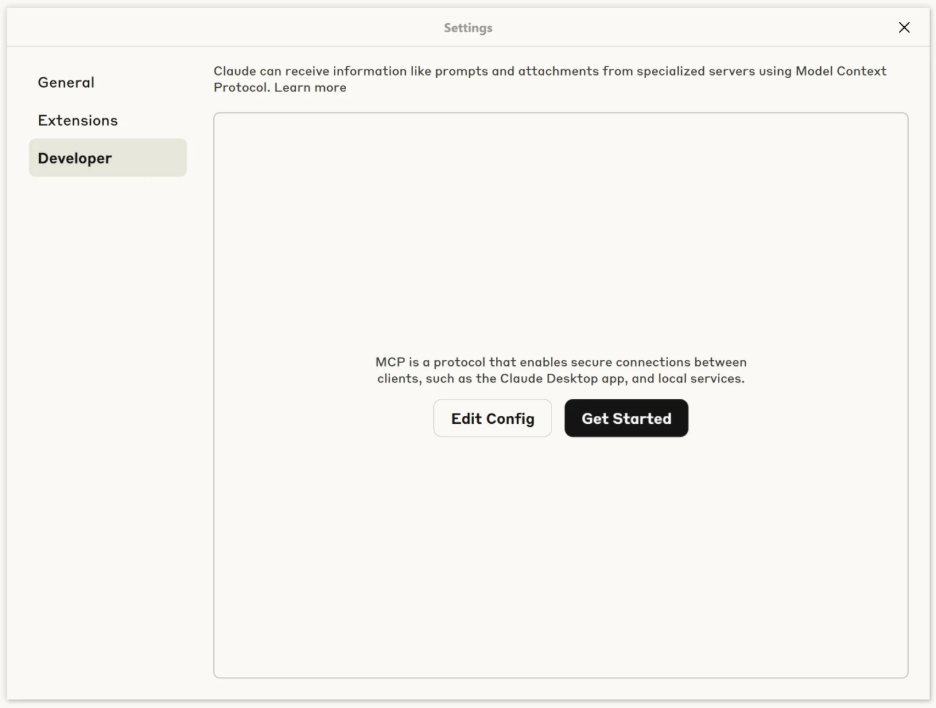
- Press Edit Config. Change https://mcp.skyvia.com/XXXXXXXX to your proper MCP endpoint URL and substitute your authorization header for the YYYYYYYYYYYYYYYYYY part.
Example configuration:
{
  “mcpServers”: {
    "google-sheets-mcp": {
      “command”: “npx”,
      “args”: [
        “mcp-remote”,
        “https://mcp.skyvia.com/XXXXXXXX”,
        “--allow-http”,
        “--header”,
        "Authorization:${AUTH_HEADER}"
      ],
      “env”: {
        "AUTH_HEADER": "Basic YYYYYYYYYYYYYYYYYY=="
      }
    }
  }
}
Restart the AI client to apply the configuration.
Step 4: Test the MCP Server
After restarting the client:
- Ask the AI to read a range from a spreadsheet.
- Request a row append or update.
- Confirm that data changes appear in Google Sheets in real time.
If authentication and permissions are correct, the MCP tools will respond immediately with live spreadsheet data.
Security Notes
- Limit Google Sheets access to only the spreadsheets the AI needs.
- Avoid granting access to sensitive or unrelated documents.
- Use strong credentials for the MCP endpoint.
- Rotate credentials if the endpoint is shared or exposed externally.
Why Skyvia is the Best Choice for Google Sheets Integration
| Feature | Manual Google Sheet MCP Server | Skyvia Google Sheet MCP Server |
|---|---|---|
| Required Skill Level | High – backend development, OAuth, APIs, MCP SDKs | Low – no-code, guided setup |
| Time to First Working MCP | Hours to days, even for experienced developers | Minutes |
| Ongoing Maintenance | On you – API changes, auth refresh, error handling | Fully handled by Skyvia |
| Connector Availability | One-off, custom-built per source | 200+ pre-built connectors |
| Security Handling | You design, implement, and audit it | Built-in auth, access control, isolation |
| Scalability | Requires custom infra decisions | Scales automatically |
| Reliability & Monitoring | You build logging, retries, and alerts | Built-in run history, retries, and logs |
| Total Cost | Developer time + hosting + maintenance | Free plan available, predictable pricing |
Conclusion
Yes, an MCP server can connect Google Sheets to your data. And if you enjoy wiring APIs together, managing OAuth flows and credentials, and fixing things when one small dependency changes, that route absolutely works. It’s powerful, flexible – and very much a developer’s playground.
But most teams don’t wake up excited to maintain a custom integration just so a spreadsheet stays up to date.
That’s where Skyvia changes the mood entirely. Instead of turning Google Sheets into an engineering project, it treats it like what it’s supposed to be: a place to work with data. Skyvia gives you a ready-made MCP endpoint, handles the protocol details, security, and scheduling, and lets you focus on what data should flow into Sheets – not how to keep the plumbing alive.
Want Google Sheets to keep its simplicity while data flowing through it gets smarter without you noticing the machinery? That is how.
Ready to transform Google Sheets from a static spreadsheet into a dynamic data hub? Sign up for Skyvia free, and build your first Google Sheets integration with our plug-in-ready MCP Endpoint.

F.A.Q. for Google Sheets MCP Server

Do I need to code to connect my database to Google Sheets?
Only if you enjoy it, a manual MCP server means writing and maintaining code. Tools like Skyvia skip that part entirely and get you to “data in Sheets” without touching an SDK.
What are the main benefits of automating data import into Google Sheets?
Your numbers stop going stale. Reports update themselves, mistakes disappear, and Sheets becomes a live workspace instead of a graveyard of last Friday’s exports.
Is it secure to use a third-party tool to connect our data to Google Sheets?
It can be, when done right. Mature platforms use encryption, scoped access, and audit logs, so data moves intentionally, not accidentally or “because someone had edit rights.”
How is Skyvia a better alternative to an MCP server?
An MCP server gives flexibility but demands time. Skyvia delivers the same result faster, with built-in security, scheduling, and 200+ connectors – without becoming another system you must babysit.
Can I connect multiple data sources to the same Google Sheet?
Yes. You can pull data from databases, CRMs, and files into one Sheet. The difference is whether you glue it together manually or let a platform designed for this handle the complexity.