Summary
- The best ways to connect HubSpot and Snowflake include using the native Snowflake Data Share for quick access, custom scripts for total control, or a dedicated ETL tool like Skyvia for scalable, no-code data integration.
This guide explains why integrating HubSpot with Snowflake matters, what data to replicate, and three practical ways — native data share, custom scripting, and ETL tools — to centralize CRM data for analytics, historical tracking, and reverse-ETL activation.
What happens when data teams in Snowflake don’t speak the language of marketers in HubSpot? So-called “Marketing analytics” will live in various spreadsheets, and there are moments of “Whose data is correct?” A proper HubSpot Snowflake integration fixes that.
Snowflake is often used as the central warehouse in a modern data stack to end data silos and address other challenges.
But how?
Our article roadmap: why have a Snowflake HubSpot connector, followed by a guide on how to do it in three ways.
Let me expand on the “why” first with my experience in data warehousing.
Table of Contents
- Why Integrate HubSpot and Snowflake?
- Methods to Connect HubSpot and Snowflake
- Method 1: Native Integration (Snowflake Data Share)
- Method 2: Custom Scripts
- Method 3: Cloud ETL/ELT Platforms
- Deep Dive: The Skyvia Advantage
- Key Data Models to Replicate
- What Reports You Can Make with HubSpot Snowflake Integration?
- Activating Data in HubSpot with Reverse ETL
- Conclusion
Why Integrate HubSpot and Snowflake?
I used to change hats from developer to data analyst back in the day. Both roles in a project can feel like “an order of orange juice, but soda was served” when developers and users don’t fully understand each other.
That’s why I iterate quickly in a project to make “orange juice be orange juice and not soda”. And in every data warehouse project on new teams, both sides need to be clear first on why a single source is much more powerful than their spreadsheets.
Here are the reasons I propose to centralize data in systems like HubSpot into data warehouses like Snowflake.
Advanced Analytics
CRM reports in HubSpot are already great. At first, they may be enough. As your business grows, you acquire other systems like QuickBooks or Google Ads, and they don’t “talk” to HubSpot.
Suddenly, HubSpot reports feel like they’re missing out on details found in other systems.
Advanced analytics let you link these systems, so users don’t manually export data and match records in spreadsheets. And so marketing focuses on marketing, and not hours of manual reporting
Combining them in Snowflake and let BI tools present the data in meaningful ways allow a data-driven decision-making.
Snowflake lets you:
- join HubSpot deals with ad spend
- analyze lifecycle trends over time
- build warehouse-level models
- and more
Example:
A company wants to calculate Customer Acquisition Cost (CAC) by combining HubSpot Deals with Google Ads data stored in Snowflake. HubSpot alone can’t do this reliably.
This removes manual CSV exports and spreadsheet joins — the analytics equivalent of duct tape.
What’s in it for you: As an analyst, you can answer questions once, not rebuild reports every week.
Data Archiving and Compliance
With the systems I built, I store the present state of data in an OLTP database. The full history? I store them in a warehouse.
CRMs like HubSpot are no exception. Records change constantly:
- contacts merge
- deal stages update
- properties get overwritten
If done right, you can preserve historical snapshots in Snowflake.
Example:
Finance asks what the pipeline looked like last quarter using the old lifecycle definition. HubSpot doesn’t have it, but Snowflake can reconstruct it using historical data.
This turns analytics from guesswork into audit-ready reporting.
What’s in it for you: no more “we can’t reproduce that report anymore.”
360-Degree Customer View
When I was working in a Human Resource company, client data lives in two systems: one in our custom-made system and the other is SAP.
Same thing, HubSpot has:
- CRM activity
- marketing engagement
Snowflake may contain:
- product usage
- billing data
- support metrics
Integration connects these pieces.
Example:
A SaaS company joins HubSpot Contacts with product-usage tables to identify highly engaged trial users who haven’t converted.
That insight doesn’t exist inside HubSpot alone.
What’s in it for you: customer behavior stops looking like puzzle pieces from different boxes.
Analytics Independence and Future-Proofing
Is your analytics tightly connected to your CRM? Then it’s fragile.
When you switch CRMs, like HubSpot to Salesforce:
- reports must be rebuilt
- definitions reset
- history becomes harder to maintain
You start from nothing again.
Warehouses like Snowflake separate analytics from operational systems.
Example:
A company migrates from HubSpot to another CRM. Because historical CRM data already lives in Snowflake, dashboards can continue working with minimal changes. You just mapped the new CRM columns to the data warehouse columns.
And so the warehouse becomes the long-term memory.
What’s in it for you: analytics survives tool changes.
Analytics Trust and Decision Confidence
This is the problem nobody documents, but everyone experiences.
When HubSpot reports, spreadsheets, and BI dashboards disagree, meetings stall. “Whose data is correct?” moment happens, and it’s creating chaos.
Integration creates one validation point.
Example:
Sales reports revenue from HubSpot. Finance reports revenue from billing data. Snowflake models reconcile both and define a shared metric.
What’s in it for you: meetings focus on decisions instead of arguing about numbers.

Methods to Connect HubSpot and Snowflake
I have written a few articles about ways to connect X to Y. They solve the same problem: move data from X to Y or the reverse. Each method has trade-offs in flexibility and effort. It’s like making a trip to somewhere using different modes of transportation. The destination is the same, but the effort is different.
This time, it’s HubSpot Snowflake integration, and we have three ways to do it.
Let’s begin with the one native to HubSpot.
Method 1: Native Integration (Snowflake Data Share)
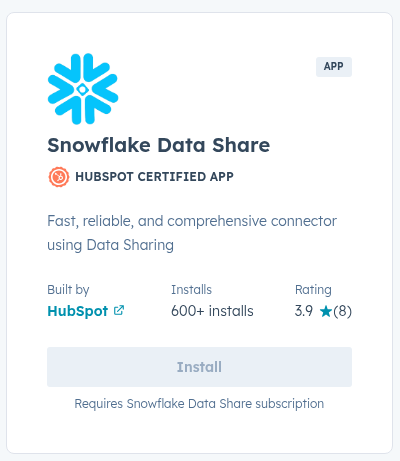
The Snowflake Data Share integration lets you access HubSpot data directly in Snowflake without building an extraction pipeline.
Best for
- Fast proof-of-concept integrations
- Teams already using HubSpot Operations Hub
- Read-only analytics use cases
- Marketing analytics dashboards
- Reducing API-based pipelines
Step-by-Step Guide
Based on both Snowflake and HubSpot sources, there are three major steps to follow:
- Request for CRM Platform Data from HubSpot.
- From your Snowflake left sidebar, click Marketplace.
- Search for CRM Platform Data from HubSpot.
- Click Request, then fill out the form, accept the HubSpot and Snowflake terms, and then click Request.
- Install the Snowflake Data Share.
- Go to the HubSpot Marketplace.
- Search for Snowflake Data Share.
- Install the app.
- Create your database in Snowflake
- Go back to the Snowflake Marketplace.
- Search for CRM Platform Data from HubSpot.
- Click Get to create a database and query your HubSpot data.
Then, you can start querying your HubSpot data from Snowflake, like the one below:
SELECT *
FROM objects_contacts
For more details about querying, visit the HubSpot Knowledgebase.
Pros
As expected from a native tool, you can expect:
- No pipeline maintenance
- Official integration
- No API pipeline required
- Fast setup
- periodically refreshed datasets
Cons
Limitations exist:
- Still requires modeling inside Snowflake
- Read-only datasets
- Limited transformation control
- Schema controlled by HubSpot
- Available for HubSpot Enterprise customers only (check HubSpot documentation for current availability).
- Not suitable for reverse ETL
Method 2: Custom Scripts
Custom scripting means building your own pipeline using the HubSpot API and loading data into Snowflake using Python or another language. If you find it really fun to code, this is for you.
Python is the most common choice because of:
- HubSpot SDK
- Snowflake connector
- scheduling flexibility
This approach gives full control but also full responsibility. Here’s a typical code for inserting the HubSpot Contacts into Snowflake using Python:
from hubspot import HubSpot
import snowflake.connector

client = HubSpot(access_token="YOUR_TOKEN")

contacts = client.crm.contacts.basic_api.get_page(limit=10)

conn = snowflake.connector.connect(
    user="USER",
    password="PASSWORD",
    account="ACCOUNT",
    warehouse="WH",
    database="DB",
    schema="PUBLIC"
)

cursor = conn.cursor()

for c in contacts.results:
    email = c.properties.get("email")
    cursor.execute(
        "INSERT INTO HUBSPOT_CONTACTS(email) VALUES (%(email)s)",
        (email,)
    )

cursor.close()
conn.close()
Best for
- Engineering teams
- Custom transformations during ingestion
- Low-volume pipelines
- Experimental pipelines
- Highly controlled architectures
Pros
- Full customization
- Flexible transformations
- No vendor dependency
- Works with any warehouse design
Cons
- API rate-limit management required
- Scheduling infrastructure needed
- Monitoring required
- Breaks when APIs change
- Higher engineering cost
HubSpot APIs enforce request limits, which pipelines must handle carefully.
Method 3: Cloud ETL/ELT Platforms
Cloud ETL/ELT tools automate the process of extracting HubSpot data and loading it into Snowflake. These tools handle schema updates, incremental loading, retries, and scheduling.
Examples include Skyvia, Fivetran, and Airbyte.
In this guide, we’ll use Skyvia as an example.
Best for
- Minimal engineering maintenance
- Analytics teams
- Modern data stack workflows
- Marketing + data collaboration
- Reverse ETL scenarios
- Production pipelines
Step-by-Step Guide: Connecting HubSpot to Snowflake with Skyvia
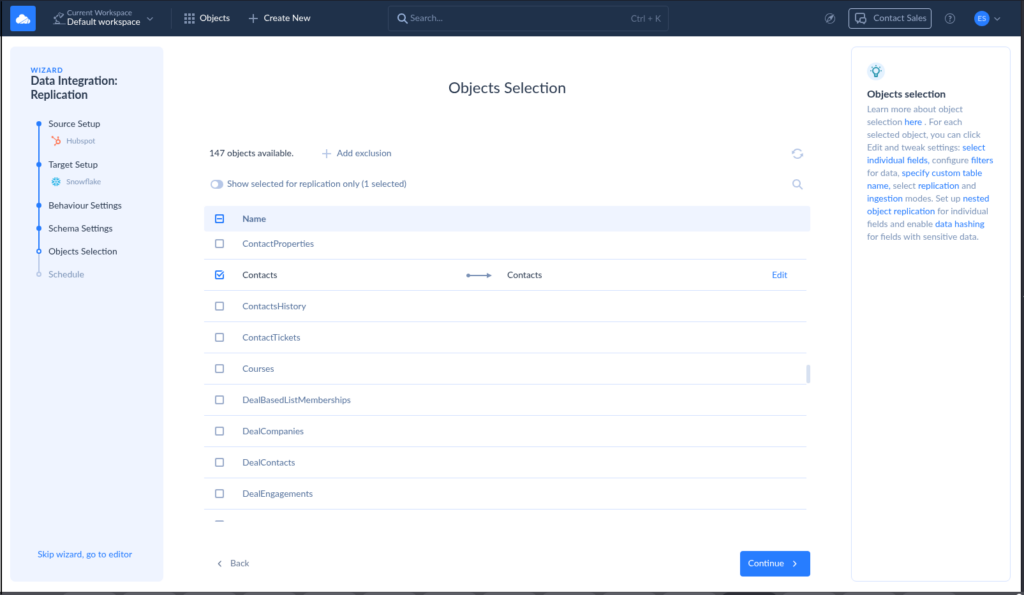
You should have a Skyvia account to follow the steps below. In this case, we will use Skyvia Replication.
Typical workflow:
- Create a HubSpot connection
- Create a Snowflake connection
- Add a Replication package.
- Select HubSpot as the source.
- Choose Snowflake destination schema
- Enable incremental replication
- Schedule the sync
Skyvia automatically:
- Creates tables
- Maps columns
- Tracks incremental changes
See a sample below. I chose the HubSpot Contacts to replicate in Snowflake.
Pros
- No-code setup
- Automatic schema updates
- Incremental replication
- Scheduling built-in
- Monitoring included
- Supports reverse ETL
- Handles API pagination
Cons
- Subscription cost may be higher for some ETL/ELT tools
- Less control than scripting
- Vendor dependency
- Still requires connector configuration
Deep Dive: The Skyvia Advantage
Skyvia is not just for moving data from cloud sources, but also for automating the boring parts of data engineering and delivering quick wins.
Let’s look at three common scenarios.
Scenario 1: ELT (Replication): “The Set-it-and-Forget-it Approach.”
Replication is the simplest way to move HubSpot data into Snowflake.
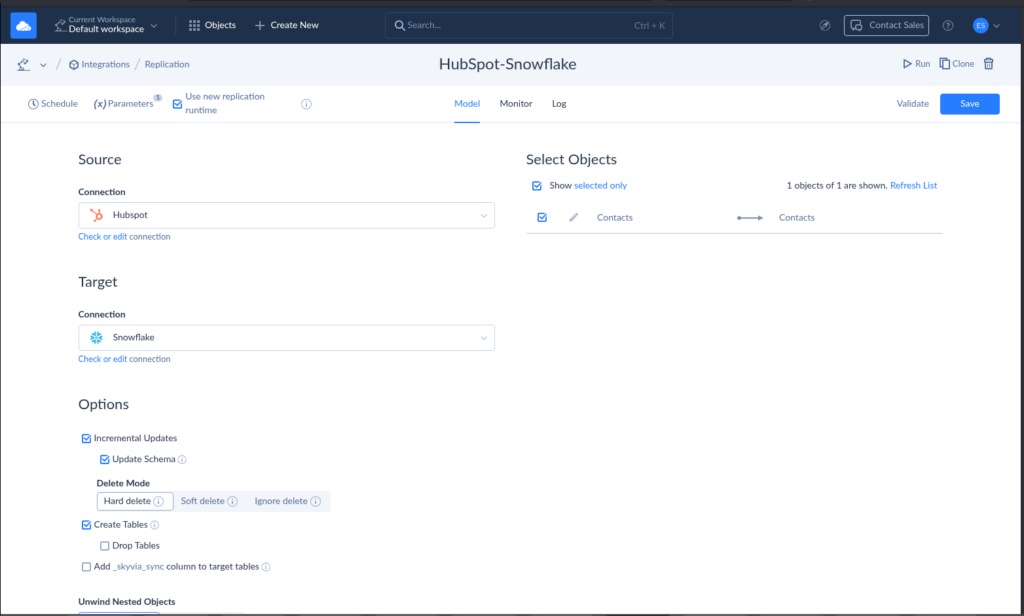
Skyvia can automatically create Snowflake tables that mirror HubSpot objects like Contacts, Companies, and Deals. You don’t need to design schemas manually.
It also supports incremental updates, meaning only new or changed records are synced instead of reloading everything each run.
That saves compute cost and reduces load time — especially for high-volume objects like engagements.
I made a Skyvia Replication sample below that syncs the HubSpot Contacts to Snowflake:
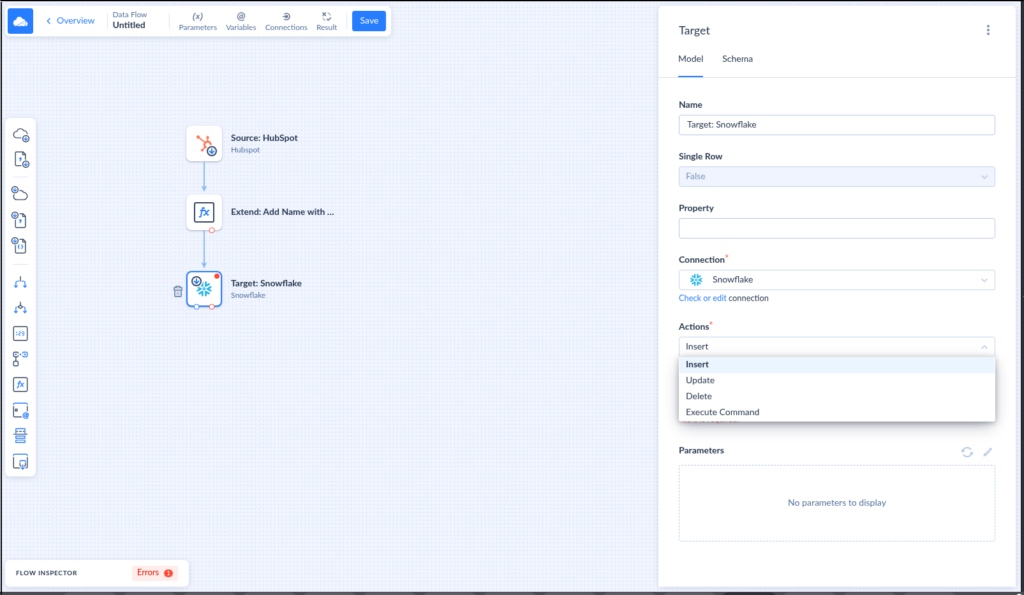
Scenario 2: ETL (Data Flow): “For Complex Logic.”
Replication copies data as-is. ETL pipelines reshape data before loading.
Skyvia’s Data Flow lets you:
- Choose columns that you only need
- filter records
- join HubSpot objects
- transform values
This is useful for compliance and reporting-ready datasets.
Below is a simple Skyvia Data Flow that gets HubSpot Contacts, adds a new calculated column, and insert to Snowflake:
Scenario 3: Reverse ETL (The Differentiator): “Activating Your Data.”
Traditional pipelines stop after loading data into the warehouse. Reverse ETL sends insights from Snowflake back into HubSpot. In this scenario, Snowflake becomes the source, and HubSpot is the target. Before sending back, calculate crucial values in Snowflake.
For example:
- Customer Acquisition Cost (CAC) tier in Snowflake
- Customer Lifetime Value (CLV)
- Churn Risk scores
These values can be written into HubSpot custom properties so sales teams can act on them.
Example workflow:
Snowflake calculates churn risk from product usage + support tickets → Skyvia writes the score back to a HubSpot Company custom property → Sales sees “High churn risk” inside the CRM.
The most flexible Skyvia solution is a Data Flow or Control Flow.
Now analytics becomes operational, not just informational.

Key Data Models to Replicate
You may not want to analyze everything in HubSpot and connect them to Snowflake. Depending on what you need, there are core objects that can answer your questions. The rest will have to stay in HubSpot until the time comes.
These five HubSpot core objects usually deliver the most insight once they land in Snowflake.
Contacts & Companies (Demographics)
These are the foundation of CRM analytics. If you want to know who the customer is, these objects should sync in Snowflake.
Note these important fields for your analysis:
- industry
- lifecycle stage
- region
- company size
Why replicate them:
They become dimension tables for nearly every marketing and sales report.
| Very Important: Adding custom properties to Contacts and Companies may cause schema drift. A lot of them too, will cause wide tables and performance issues during integration. If querying with SQL, do not use SELECT *. Choose only the columns your data warehouse needs. |
Deals (Revenue Pipelines)
Deals represent revenue movement through the funnel.
This table answers:
- pipeline value
- win rates
- sales velocity
- forecast accuracy
Why replicate it:
Deal stage changes over time. Warehouses preserve those transitions for large-scale analysis.
| Very Important: Deal stage history tracking can grow quickly if synced incorrectly. |
Engagements (Calls, Emails, Meetings)
Engagements show sales and marketing activity, not just outcomes.
These tables can grow large, but they’re high-value for behavioral analysis.
Why replicate them:
They connect activity to conversion outcomes.
| Very Important: Syncing engagements can be a major integration caveat. Why: * Very high volume * Continuous updates * Multiple engagement types * Historical sync can be huge * Can hit HubSpot API rate limits Teams usually handle this by using: * Selective sync (like calls and emails only) * Incremental load (sync only the rows that changed) * Aggregate (summarize counts instead of raw info) * Retention policy (Purge old records if it’s no longer needed) |
Ticket Pipelines (Support Data)
Support data completes the customer lifecycle.
Tickets reveal:
- onboarding friction
- churn signals
- product issues
Why replicate them:
Customer health analysis needs both support and revenue context.
Very Important:
Ticket comments and activity logs can grow large if included in the sync scope.
Deal Line Items / Products (Revenue Detail)
This is the revenue breakdown layer.
Deals tell you that revenue exists. Line items tell you what generated it.
Typical fields:
- product name
- SKU
- quantity
- price
- discount
Why replicate them:
Revenue analytics becomes much more accurate and flexible.
Very Important:
If modeled incorrectly:
* revenue gets double-counted
* dashboards become unreliable
Mapping HubSpot Objects to Snowflake Tables
You may ask, “How do I put these HubSpot data models in Snowflake?”
Here’s how I’ll typically do it in Snowflake in data warehousing terms:
| HubSpot Object | Snowflake Role | Why |
|---|---|---|
| Contacts | Dimension | Describes people/customers |
| Companies | Dimension | Describes organizations |
| Deals | Fact | Revenue events |
| Engagements | Fact (activity fact) | Interaction events |
| Deal Line Items / Products | Fact (revenue detail) | Transaction-level revenue |
| Ticket Pipelines | Fact (support activity) | Service events |
What Reports You Can Make with HubSpot Snowflake Integration?
This section will give you ideas about reporting as you plan your own HubSpot Snowflake integration.
With HubSpot along with Ad spends and others combined in Snowflake, you can build reports based on warehouse-computed values, not just native CRM fields.
And since you are a data expert and not marketing, I have included typical report columns and where you can get them. Your Marketing stakeholder can change them depending on what they need, so all you need to do is ask.
Let’s do it.
CAC by Channel (Deals + Ad Spend)
What it is:
Customer Acquisition Cost by marketing channel. Combines HubSpot deals with ad spend from Google Ads, LinkedIn, or Facebook.
Benefit:
Shows which channels bring customers most efficiently. Marketing teams can optimize budgets, and sales know which leads are more profitable.
Typical columns:
| Column | Source | Description |
|---|---|---|
| Channel | Ad Platform | Paid source of the lead |
| Customers Acquired | HubSpot Deals | Count of closed-won deals |
| Total Ad Spend | Ad Platform | Amount spent per channel |
| CAC | Calculated | Ad Spend ÷ Customers Acquired |
| Deal Revenue | HubSpot Deals | Total revenue from deals |
Attribution Modeling (First-touch vs Last-touch)
What it is:
Analyzes which channels influenced conversion. Combines HubSpot contact and deal data with external campaign touchpoints.
Benefit:
Prevents over-crediting one campaign. Helps marketing focus on the channels that truly drive revenue.
Typical columns:
| Column | Source | Description |
|---|---|---|
| Deal ID | HubSpot Deals | Unique identifier |
| First-touch source | HubSpot + Campaign Logs | First interaction channel |
| Last-touch source | HubSpot + Campaign Logs | Last interaction channel before conversion |
| Revenue | HubSpot Deals | Deal revenue |
| Attribution type | Calculated | Weighted, first-touch, or last-touch |
Sales Activity Effectiveness (Touches vs Win Rate)
What it is:
Examines the relationship between sales activities (calls, emails, meetings) and deal outcomes.
Benefit:
Helps reps and managers identify the “sweet spot” of engagement needed to close deals.
Typical columns:
| Column | Source | Description |
|---|---|---|
| Deal ID | HubSpot Deals | Unique deal identifier |
| Number of touches | HubSpot Engagements | Total calls, emails, meetings |
| Call count | HubSpot Engagements | Number of calls |
| Email count | HubSpot Engagements | Number of emails |
| Win/Loss status | HubSpot Deals | Closed-won or lost |
| Win rate | Calculated | % of deals won per engagement tier |
Pipeline Velocity Report
What it is:
Measures how quickly deals move through stages. Combines HubSpot stage timestamps with historical deal data.
Benefit:
Identifies slow-moving deals and bottlenecks in the sales process.
Typical columns:
| Column | Source | Description |
|---|---|---|
| Deal ID | HubSpot Deals | Unique deal identifier |
| Stage | HubSpot Deals | Deal pipeline stage |
| Stage entry date | HubSpot Deals | When deal entered the stage |
| Days in stage | Calculated | Time spent in each stage |
| Total sales cycle length | Calculated | Days from first stage to close |
Product Revenue Performance (Deal Line Items)
What it is:
Analyzes revenue contribution per product or SKU using deal line items, optionally combined with product or ERP systems.
Benefit:
Shows which products generate the most revenue, helping sales prioritize and marketing target campaigns.
Typical columns:
| Column | Source | Description |
|---|---|---|
| Product | Product DB / HubSpot Line Items | Product or SKU sold |
| Deal ID | HubSpot Deals | Associated deal |
| Quantity | HubSpot Line Items | Number of units |
| Revenue | HubSpot Line Items + ERP | Revenue per product |
| Customer segment | HubSpot Contacts / Product DB | Segment the customer belongs to |
Activating Data in HubSpot with Reverse ETL
Reports show “what happened,” but Reverse ETL lets HubSpot act on warehouse insights. I have included the HubSpot object to update and the custom property to add. Here are five crucial, actionable fields that I commonly send back from Snowflake:
CAC Tier (Customer Acquisition Cost)
What it is:
Classifies customers or deals into Low / Medium / High acquisition cost.
How calculated:
CAC = Ad Spend ÷ Customers Acquired
Then bucket into tiers Low, Medium, High. Ask your Marketing stakeholder what CAC values fall under Low, Medium, or High, or if marketing has a different classification.
Benefit:
Sales and marketing can prioritize profitable leads and adjust budgets.
HubSpot destination:
- Object: Company or Deal
- Custom Property: cac_tier
Primary Attribution Channel
What it is:
Highlights which marketing channel had the most influence on the deal.
How calculated:
Use warehouse attribution logic (first-touch, last-touch, or weighted models) on combined HubSpot + campaign data.
Benefit:
Marketing segmentation and automation become channel-aware.
HubSpot destination:
- Object: Contact or Deal
- Custom Property: primary_attribution_source
Engagement Level
What it is:
Score indicating how actively a sales rep has engaged a deal or contact.
How calculated:
touches_per_deal = calls + emails + meetings
Then categorize into Low / Medium / High engagement.
Benefit:
Sales managers can quickly identify deals needing follow-up.
HubSpot destination:
- Object: Deal
- Custom Property: engagement_level
Churn Risk Score
What it is:
A measure of how likely a customer or contact is to stop engaging, cancel, or churn.
How calculated:
- Aggregate product usage, engagement logs, and subscription/deal history.
- Apply a scoring or classification model to bucket customers into High / Medium / Low risk.
Benefit:
Proactively triggers retention campaigns or account manager outreach before the customer churns.
HubSpot destination:
- Object: Contact or Company
- Custom Property: churn_risk_score
Product Revenue Tier
What it is:
Ranks products by revenue contribution.
How calculated:
product_revenue = SUM(line_item_amount)
Then categorize into Top / Mid / Low performers.
Benefit:
Guides upsell/cross-sell campaigns and highlights high-performing products for focus.
HubSpot destination:
Property: product_revenue_tier
Object: Product or Deal Line Item
You can ask your Marketing stakeholder for more actionable insights that they need to get from the data warehouse into HubSpot.
Conclusion
HubSpot Snowflake integration allows you to have advanced analytics, CRM archiving, a 360-degree customer view, operational reliability, and future-proofing. I showed you ways to do that using native methods, scripting, and third-party tools. You also learned about possible reports and actionable insights to send back to HubSpot using Reverse ETL.
Ready to centralize your marketing data? Start your free Skyvia trial today and build your HubSpot Snowflake integration in under 5 minutes.

F.A.Q. for HubSpot Snowflake Integration

Can I sync data from Snowflake back to HubSpot (Reverse ETL)?
Yes, but not with HubSpot’s native data share. Reverse ETL requires integration tools or custom pipelines that write warehouse-computed values back into HubSpot objects and properties.
Does the integration support HubSpot Custom Objects?
Yes. Most ETL tools and API-based integrations can replicate HubSpot Custom Objects into Snowflake, as long as the integration supports the HubSpot CRM API.
Do I need coding skills to connect HubSpot and Snowflake?
Not necessarily. No-code ETL platforms can connect HubSpot and Snowflake using connectors. Coding is only required when building custom API pipelines or transformations.
How does the integration handle HubSpot API limits?
ETL tools typically use batching, retries, and incremental sync to stay within HubSpot API rate limits. This prevents failures during large or scheduled data loads.
Can I load historical HubSpot data into Snowflake?
Yes. Integrations usually perform an initial full load of historical CRM data, followed by incremental updates to keep Snowflake synchronized with HubSpot changes.