Summary
- COPY (server-side) – data moves straight from PostgreSQL's disk to a file on the server with no ceremony and no middlemen slowing things down.
- copy (client-side) – the CSV ends up on your machine instead of trapped on a server you can't access, which is why it works with locked-down databases.
- PgAdmin – for the moments when writing commands feels like overkill. Right-click a table, choose your settings, and the CSV appears on your machine without opening a terminal.
- Skyvia (automated tools) – stops you from doing the same export forty times by scheduling recurring jobs that drop CSVs directly into cloud storage, so the work happens in the background instead of sitting on your to-do list.
Exporting data from PostgreSQL isn’t about finding the “best” method. It’s about picking the one that fits how you actually work. Today, you may find the COPY TO Command your savior; next week, you need something more perpetual.
So, it’s important to know your options and be able to switch between them to export PostgreSQL tables to CSV files as quickly as possible. Ready to turn stones?
Table of Contents
- When to Export Data to CSV
- Method 1: The
COPY TOCommand - Method 2: The
\copyMeta-Command - Method 3: Using pgAdmin
- Method 4: Automated Tools like Skyvia
- Comparison of methods
- Common Issues and Solutions
- Conclusion
When to Export Data to CSV
CSV is the format people reach for when data needs to travel, be inspected, or be handed off without dragging a full database setup along. Actually, in this chapter, you will find lots of compliments to spreadsheets.
Here are the situations where exporting to CSV makes the most sense.
- Data sharing
Sometimes the database isn’t the place where decisions happen. Numbers get copied into slides, opened in Excel, filtered in Google Sheets, or sent to someone who has never logged into PostgreSQL and never will. Exporting to CSV is how data leaves the “DB-only” world and becomes something people can actually poke at, sort, and validate without asking you for another query.
- Reporting and analysis
Spreadsheets are the quickest way to slice numbers in Excel, create a quick view in Google Sheets, or sanity-check results before a meeting, so let’s face it: they won’t go away. Data that opens instantly without the need for connectors or credentials. Not even their appearance can overshadow those advantages.
- Data migration
Exporting first keeps things consistent and transparent, particularly during one-time transfers or system modifications, if the destination accepts CSV from another database, a SaaS tool, or a data warehouse.
- Backups
CSV makes a surprisingly good backup. It’s human-readable, easy to version, and simple to restore from. Not a replacement for full database backups, but perfect for keeping copies of critical reference data or historical subsets.
In short, exporting to CSV is about flexibility. When data needs to leave PostgreSQL and be understood, shared, or reused elsewhere, CSV is usually the path of least resistance.
Method 1: The COPY TO Command
We’ll show you how PostgreSQL’s COPY command handles table exports to CSV. COPY functions from both client and server perspectives. Run it client-side to store CSV output on your local drive. Run it server-side to write the file directly onto the server. The process is consistent and easy to replicate across multiple tables.
Note: We use the same table we used during the CSV import to PostgreSQL – the Sample employee table. All the examples and code will be built specifically for it. However, you can use your own data.
When to use this method
- Large, reliable snapshots or shaped extracts, generated on a schedule.
- DevOps/DBA workflows where you control the server, or can fall back to
\copy. - Handing off files to downstream tools or partners from a known location.
- One-step exports where a single SQL query defines exactly what goes into the CSV.
Step-by-step instructions
Option A: Export to a CSV on your computer with psql \copy (client-side)
Step 1: Open psql and connect to your database
From a terminal:
psql -h <host> -p 5432 -U <user> -d <database> Step 2: Pick an output path on your machine
Choose a location that definitely exists on the machine where psql is running (your laptop, CI runner, etc).
- macOS/Linux example:
-- writes to your machine (client)
\copy employees TO '~/Downloads/employees.csv' WITH (FORMAT csv)
- Windows example:
\copy employees TO 'C:/Temp/employees.csv' WITH (FORMAT csv)
Why this works: \copy reads/writes files “on the client host” (the machine running psql), then streams data via COPY … TO STDOUT/STDIN behind the scenes.
Step 3: Add headers (most people want this)
By default, CSV headers are off unless you ask for them.
\copy employees TO '~/Downloads/employees_with_header.csv'
WITH (FORMAT csv, HEADER true)
Step 4: Export only some rows (query export)
\copy (SELECT * FROM employees WHERE first_name = 'Alex')
TO '~/Downloads/employees_alex.csv'
WITH (FORMAT csv, HEADER true)
Step 5: Confirm it worked
psql prints COPY <count> when it finishes. Quick check:
SELECT COUNT(*) FROM employees;
Option B: Export to a CSV on the database server with SQL COPY (server-side)
Step 1: Confirm you’re allowed to write server files
Server-side COPY ... TO 'filename' is restricted to superusers or roles like pg_write_server_files. If you don’t have that, use \copy instead.
Step 2: Choose an absolute path on the server
For server-side output files, use an absolute path, and it must be writable by the PostgreSQL server OS user.
Step 3: Export the whole table (with header)
COPY employees
TO '/var/lib/postgresql/employees_server.csv'
WITH (FORMAT csv, HEADER true);
Step 4: Export a filtered dataset (query export)
COPY (SELECT * FROM employees WHERE first_name = 'Alex')
TO '/var/lib/postgresql/employees_server_alex.csv'
WITH (FORMAT csv, HEADER true);
Step 5: Remember the “viewpoint” rule
COPY ... TO 'file' writes from the server’s point of view (server filesystem, server permissions). \copy writes from the client’s point of view (your machine).
Pros
- Fast, server-side export with minimal overhead. Great for big tables or wide queries.
- Flexible:
COPY table TO or COPY (SELECT …) TOfor shaped extracts. - Plenty of controls: header, delimiter, NULL string, quote/escape, encoding, and force-quote.
- Cron and PSQL scripting for repetitive tasks is simple.
- Even if the server’s file system is locked down, you can write to the local machine using
\copy.
Cons
COPY TOwriting on the server needs the right file permissions or roles, which many managed Postgres services restrict.- Paths, quoting, and encoding can be finicky. A small mismatch breaks the run.
- Not ideal for row-by-row transforms. You’ll handle those in the
SELECTor a staging step. - Big exports can chew up disk space or network bandwidth if you’re moving the file elsewhere.
- Incremental logic is on a user who must filter by timestamps/flags in the
SELECT.

Method 2: The \copy Meta-Command
This chapter walks through using PostgreSQL’s \copy meta-command – a simple, dependable way to pull data into CSV files without special privileges, server access, or extra tooling.
When to use this method
- You’re connected to a remote or managed PostgreSQL service where server-side
COPY TOis blocked or simply not an option. - The CSV needs to land on your own machine, not on the database server you don’t control.
- You want to export query results, not just whole tables, without creating temp objects.
- You’re scripting exports in CI, cron, or ad-hoc jobs and want something repeatable and permission-light.
- You need a quick, clean CSV to hand off to analytics, finance, or anyone who doesn’t speak SQL.
Step-by-step instructions
Step 0: Prerequisites
/copyis a psql meta-command, not plain SQL. If you can’t openpsql, you can’t use it. Quick check:psql --version.- You need database access with SELECT rights. Your role must be able to read from the table (or run the
SELECTyou’re exporting). No superuser or special roles required. - Your local machine must be able to write the file. If the folder doesn’t exist or you don’t have write permission,
\copywill fail. - Enough local disk space for the result. Especially relevant for large exports. PostgreSQL won’t warn you ahead of time – it’ll just stop when the disk fills up.
Step 1: Open a terminal and connect with psql
Run this (swap placeholders):
psql -h <host> -p 5432 -U <user> -d <database> If you connect successfully, you’ll see the psql prompt (something like db=>).
Step 2: Confirm you’re exporting the right table
Inside psql, run:
\dt You should see employees in the list. (Optional sanity peek: SELECT * FROM employees LIMIT 5;)
Step 3: Export the whole employees table to a CSV (with headers)
Pick a file path on your machine (because \copy writes on the client side).
- macOS/Linux example:
\copy employees TO '/Users/yourname/exports/employees.csv' WITH (FORMAT csv, HEADER true); - Windows example (either style usually works):
\copy employees TO 'C:/exports/employees.csv' WITH (FORMAT csv, HEADER true); or
\copy employees TO 'C:\exports\employees.csv' WITH (FORMAT csv, HEADER true); What HEADER true does: it writes the column names as the first row, which is what you want for Excel, Sheets, and most imports later.
Step 4: Export only a filtered subset (query export)
If you want “just Alex” (or any filter), export a SELECT:
\copy (SELECT * FROM employees WHERE first_name = 'Alex') TO '/Users/yourname/exports/employees_alex.csv' WITH (FORMAT csv, HEADER true); COPY can export a SELECT result, and \copy simply uses the same engine but saves the file locally.
Step 5: Export only specific columns (in your preferred order)
Use a SELECT so you control both columns and order:
\copy (SELECT emp_id, first_name, last_name FROM employees) TO '/Users/yourname/exports/employees_names.csv' WITH (FORMAT csv, HEADER true); Step 6: Confirm it worked
After a successful run, psql prints COPY <count> (that’s how many rows it wrote). Then quickly check the file on your machine (examples):
- macOS/Linux:
head -n 5 /Users/yourname/exports/employees.csv - Windows PowerShell:
Get-Content C:\exports\employees.csv -TotalCount 5 One important “don’t mix these up” note
COPY ... TO '/path/file.csv'writes on the server’s filesystem and needs server file access.\copy ... TO 'file.csv'writes on your machine (client side), which is why it works nicely with managed databases where you can’t touch the server disk.
Pros
- No server filesystem access required.
\copyreads and writes locally, so it works even on locked-down platforms like RDS, Cloud SQL, or Heroku. - Minimal permissions –
SELECTis enough. - Flexible and scriptable: export full tables, filtered queries, or specific columns, all from the same command you can automate.
- It streams data efficiently and is miles ahead of row-by-row exports, especially for medium to large datasets.
- The CSV ends up exactly where your scripts, tools, or teammates expect it: on your machine.
Cons
- When exporting tens of gigabytes over a remote connection, the client-server hop adds real time.
- No GUI buttons here. If you’re allergic to terminals, this may not be your favorite tool.
- Client environment matters. Paths, permissions, disk space, and encoding issues all live on your machine, not the server.
- No automatic parallelism. Very large exports may need manual chunking or multiple queries if speed becomes critical.
Method 3: Using pgAdmin
pgAdmin is the option you reach for when you want the job done without opening a terminal or memorizing syntax. It’s PostgreSQL’s official graphical client, and for exporting tables to CSV, it does exactly what you expect – no surprises, no hidden behavior, no magic.
pgAdmin exports the same way \copy does in psql – client-side processing. The database feeds rows to pgAdmin, which turns around and writes a CSV file directly to your machine, not the server.
When to use this method
- One-off extracts, small to medium result sets, and “need it now” CSVs.
- Analysts who want to eyeball data before exporting.
- Ad-hoc query exports, where setting up
COPYor automation would be overkill.
Step-by-step instructions
Step 0: Prerequisites
Before exporting anything, make sure a few basics are covered:
- pgAdmin 4 (or newer) is installed and connected to your PostgreSQL server
- You can see the target database and table in the Browser panel
- Your database role has
SELECTprivileges on the table - You have permission to write files to your local machine
No superuser access is required. pgAdmin does not need filesystem access on the server.
Step 1: Locate the table
In the left-hand Browser panel, expand:
Servers → your server → Databases → your database → Schemas → public → Tables
Find the table you want to export (for example, employees).
Step 2: Open the export dialog
Right-click the table and select Import/Export Data…
A modal window opens with two main tabs: General and Options.
Step 3: Switch to Export mode
In the General tab:
- Set Export/Import to Export
- Choose a Filename on your local machine, for example:
- Windows:
C:\exports\employees.csv. - macOS/Linux:
/Users/you/exports/employees.csv.
- Windows:
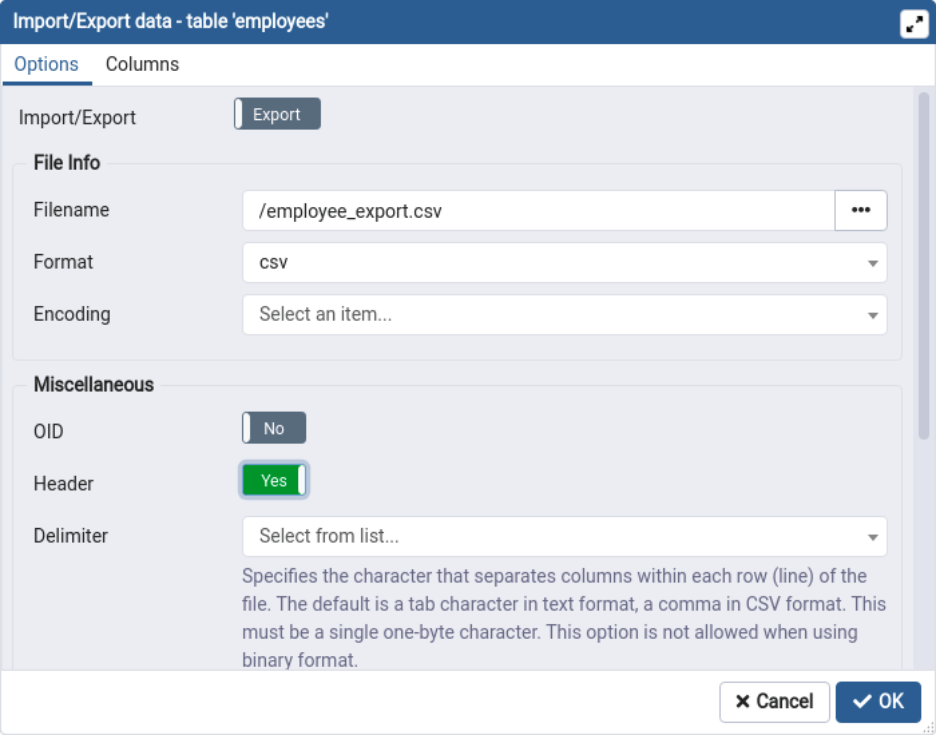
- Set Format to CSV.
- Set Encoding to UTF8.
That tells pgAdmin exactly what to generate and where to put it.
Step 4: Set CSV options deliberately
Switch to the Options tab and confirm:
- Header: enabled (recommended, unless you explicitly want raw data).
- Delimiter:
,. - Quote:
". - Escape:
".
These defaults match what most tools expect and play nicely with Excel, Google Sheets, and other databases.
Step 5: Export specific columns (optional)
If you don’t want the entire table:
- Open the Columns tab.
- Select only the columns you want in the CSV.
That is useful when exporting subsets without creating custom views or queries.
Step 6: Run the export
- Click OK.
- pgAdmin shows progress in the Process Watcher. When it says completed successfully, the file is already written.
Step 7: Verify the result
Open the CSV file in a text editor or spreadsheet:
- Check that headers are present (if enabled).
- Spot-check a few rows.
- Confirm encoding and formatting look sane.
If it opens cleanly, you’re done.
Pros
- Quick wins from the GUI: pick a table or paste a query, preview results, and hit Export.
- All the knobs in one place: header on/off, delimiter, quoting/escaping, encoding, NULL text, destination path.
- Easy to spot-check: a user can tweak the query, re-run, and export again in seconds.
- Exports land on your machine, so no need for server file permissions or shell access.
Cons
- Not built for repeatability: lots of clicks, no versioned scripts.
- Big pulls can be sluggish or fail if your network or laptop isn’t happy.
- It’s easy to ship a file with the wrong encoding/quotes if you forget to adjust defaults.
- Tied to your workstation’s disk and access. Not great for team handoffs or headless runs.
Method 4: Automated Tools like Skyvia
Skyvia is a data integration platform that allows not only importing/exporting CSV files from a local computer but also automatically loading files to/from file storage services or FTP/SFTP servers. So, we will demonstrate loading CSV files from PostgreSQL to Dropbox.
Besides today’s topic, Skyvia supports more than 200 ready-to-use connectors; you can move data seamlessly between CRMs, cloud storage, analytics, marketing automations, etc., tools.
When to use this method
- Recurring report feeds to Drive/S3/FTP (finance, marketing, partners) on a reliable schedule.
- Operational handoffs: shipping cleaned data slices to vendors or other teams.
- Light CDC-style exports: “new/updated since last run” without writing glue code.
- Teams that want auditability and alerts, rather than fragile cron jobs.
Step-by-step instructions
Step 0: Prerequisites
You need to have accounts with Skyvia and Dropbox. Both are free to register.
Step 1: Creating Connections on Skyvia
After you register with Skyvia, you can start creating connections to your PostgreSQL and Dropbox databases.
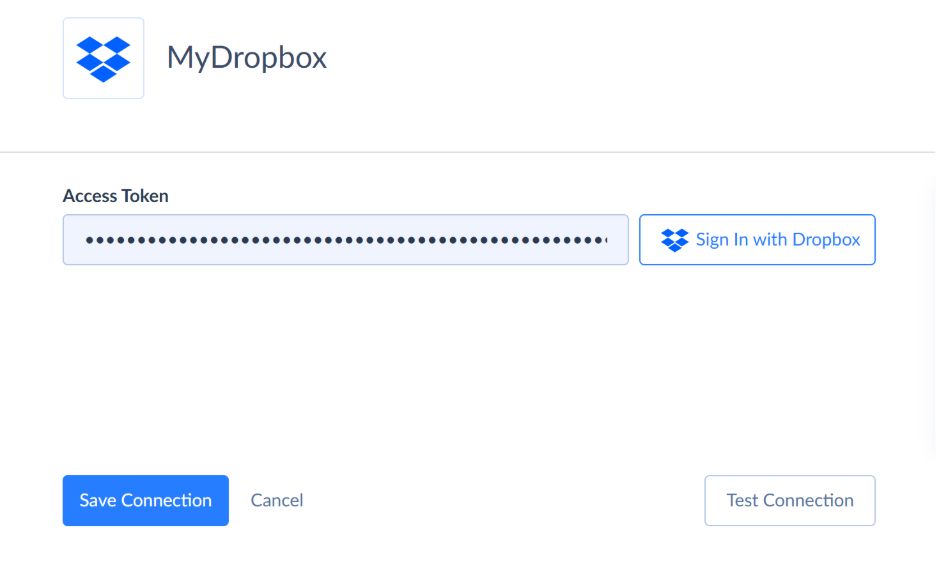
- Click + Create New and select Connection in the menu on the left.

- Then, in the list of connectors, select the data source you want to connect to and configure the required parameters.
- For Dropbox, just sign in and allow Skyvia to access your data.
- For a PostgreSQL connection, enter the basics: server address, port, database, user, password, and schema. SSL/encryption is optional but recommended.
You’ve got two ways to connect:
- Direct connection. Skyvia connects to your Postgres instance over the internet. Use this when your DB is publicly reachable (with proper firewall rules and allow-listing Skyvia IPs). It’s simple, but you need to expose the DB safely.
- Agent connection. For databases behind a firewall or on a local network. You install the lightweight Skyvia Agent on a machine that can see your DB; it opens a secure outbound tunnel to Skyvia, so you don’t punch holes in your network. Great for on-prem or locked-down environments.
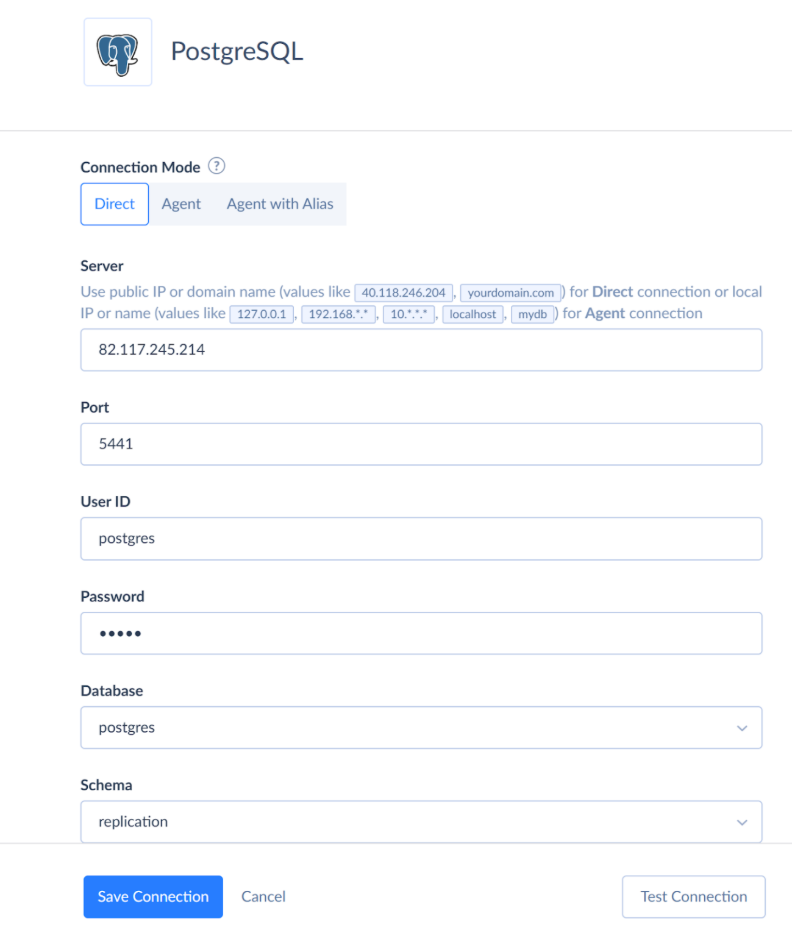
Step 2: Creating Integration for Data Export from PostgreSQL
- Click + Create New, then select Export under Integration, as you would when creating an import integration.
- Under Source, select the PostgreSQL connection.
- Move on to Target and select CSV to storage service. Then select the Dropbox connection you created, and choose the folder where you want to place the exported file.
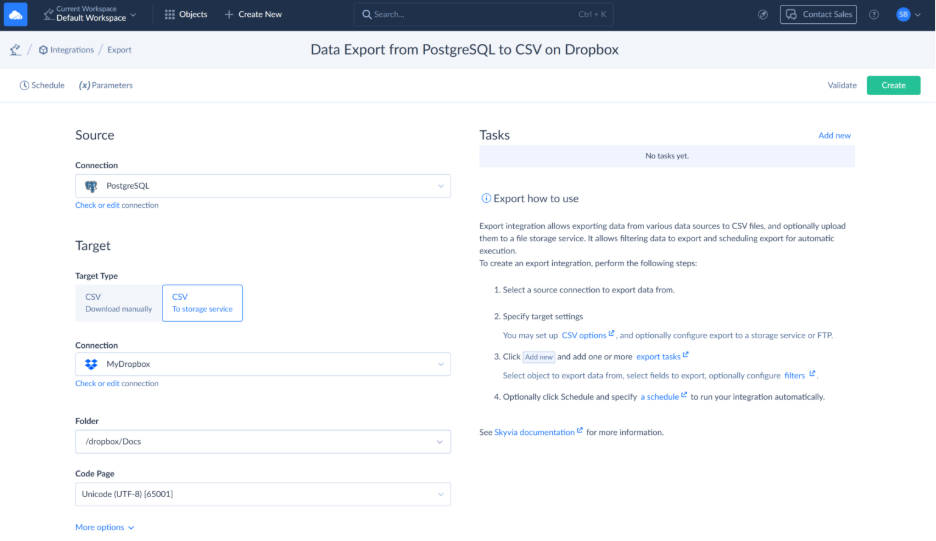
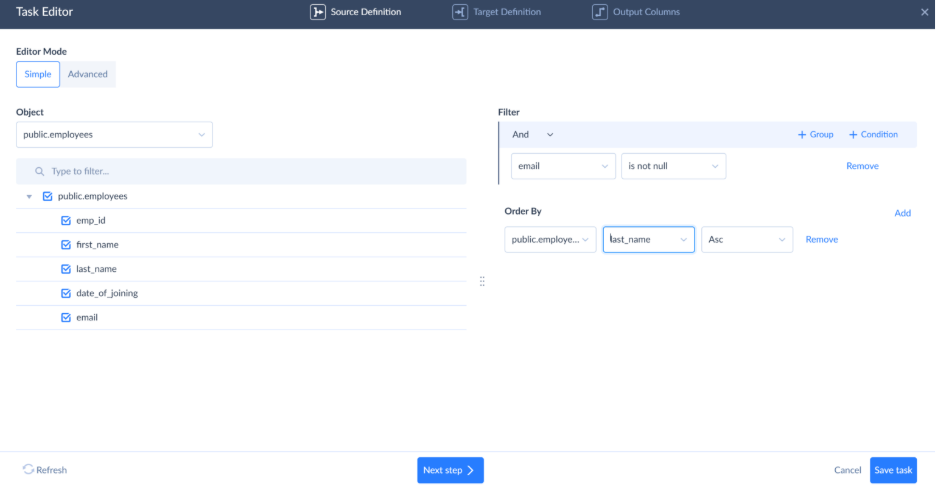
- Click Add new on the top right of the page to add an Import task. In the task, you specify a table to export.
- In the Object list, select the table to export. Here, you can also configure filters to export only some of the records, you can clear checkboxes for some of the fields in order not to export them, specify the file name and compression, etc.
Step 3: Schedule your PostgreSQL table to a CSV file export
- Finally, you can schedule the export integration (as well as any other integration on Skyvia) for automatic execution on certain days and at a specific time. Enjoy the process with no more effort!

Pros
- Set-and-forget scheduling: daily/weekly/hourly exports without babysitting scripts.
- Point it at PostgreSQL, map fields or use a custom SQL, and land CSVs in Google Drive, S3, Dropbox, FTP, or wherever you want.
- Filters, sorting, and incremental exports (e.g., “only rows changed since last run”) to keep files lean.
- Handy file controls: headers, delimiter/encoding, gzip/zip, row limits, file name patterns with timestamps.
- Guardrails built in: run history, error logs, retries, pre/post-SQL, and notifications when something breaks.
- Grows with you. Plug the export into broader Data Flow/Control Flow when the pipeline gets more complex.
Cons
- Advanced options live on paid plans.
- Throughput depends on network/storage; truly massive dumps may still be faster with server-side COPY TO.

Comparison of methods
| Aspect | COPY (server-side) | \copy (client-side) | pgAdmin 4 | Skyvia |
|---|---|---|---|---|
| Speed | Fastest, especially for very large tables | Very fast, yet slightly slower than COPY | Fine for small to medium exports | Good and consistent; network-dependent |
| Ease of use | Low – requires server access and care | Medium – psql familiarity needed | High-visual, guided workflow | Very high – no-code, guided setup |
| Automation | Yes, via scripts and schedulers | Yes, via scripts and cron | No – manual only | Yes – built-in scheduling, retries, logs |
| File location | Database server filesystem | Local machine | Local machine | Cloud storage, FTP/SFTP, databases |
| Required permissions | Superuser or pg_write_server_files | SELECT privileges only | SELECT privileges | Database credentials only |
Common Issues and Solutions
Most CSV export failures trace back to: the file going to the wrong spot, you’re not allowed to touch that spot, or your data has a formatting disaster lurking inside. So, which one ruins your working day? Let’s see.
COPY(server-side) issues
COPY fails most often because of filesystem permissions. The database server must be able to write to the target path, using an absolute location that the postgres user can access. Encoding glitches are also common, adding ENCODING ‘UTF8’ prevents strange characters from sneaking into the file.
\copy(client-side) issues
With \copy, file paths live on your machine, not the database server, which means that local permissions or a path that doesn’t exist are to blame for creation fails. Remote exports crawl sometimes, breaking them into chunks or compressing afterward makes the pain bearable. Don’t forget HEADER—\copy won’t add column names unless you ask.
- pgAdmin issues
pgAdmin is friendly but opaque. Errors can be vague, so previewing data in the Query Tool first is a good sanity check. Large exports may time out, and antivirus software can block temp files on some systems. When pgAdmin struggles, switching to psql is often faster than debugging the GUI.
- Formatting pitfalls across all methods
Ambiguous CSV formatting is responsible for the most downstream headaches a team usually suffers. Be explicit about delimiters, quotes, and NULL values so tools like Excel don’t misinterpret the data. These issues are normal when exporting “by hand.”
If CSV exports become recurring work, automation tools like Skyvia remove the guesswork by standardizing formatting, destinations, and schedules, so exports quietly work in the background instead of demanding attention.
Conclusion
The tools themselves aren’t the problem. The friction shows up when the way you export no longer matches the way you work.
- If you’re close to the database and just want the fastest way out,
COPYis the blunt instrument that gets it done. No ceremony, no middlemen – just data moving straight from disk to file. - When access is locked down, or the CSV lives on your laptop,
\copykeeps the same idea but meets reality halfway. A little slower, a lot more flexible. - pgAdmin sits in a different lane entirely. It’s there for the moments when typing commands feels like overkill. Right-click, export, done. Perfect for ad-hoc pulls, demos, or “can you send me this table real quick?” requests.
But here’s the real dividing line. When exports happen once, any of these methods is fine. When they happen every week, every night, or every time a partner asks for the same file again, manual tools stop being helpful and start becoming noise.
That is where Skyvia makes sense. It just stops you from doing the same export forty times. Define the what, where, and when once, then stop caring. If exporting CSVs is still showing up on your weekly routine like a bad habit, Skyvia can handle it, so you’re free to tackle work that actually benefits from your involvement.

F.A.Q. for How to Export from PostgreSQL to CSV

What’s the best way to handle data that contains commas or quotes?
Let PostgreSQL do it. The CSV format wraps problem fields in quotes and escapes what needs escaping. You don’t need to sanitize anything beforehand, just export, and the formatting happens automatically.
Can I export my data directly to a cloud storage service like Amazon S3 or Google Drive?
Not directly from PostgreSQL. COPY writes to a file path, so you’d export first, then upload separately. If you’re doing this regularly, use a tool that connects both ends instead of shuttling files manually.
How do I export my data using a different delimiter, like a semicolon or a tab?
Specify it: WITH (DELIMITER ‘;’) for semicolons, DELIMITER E’\t’ for tabs. Just make sure whoever receives the file knows you switched delimiters, or they’ll wonder why everything looks broken.
Why is my exported CSV file showing strange symbols or failing to open correctly in Excel?
Encoding problem. Add ENCODING ‘UTF8’ to your export. If Excel still mangles it, open the file through Data → Import instead of double-clicking. Excel assumes weird defaults when you open CSVs directly.