Summary
- File System MCP Server is a secure bridge that allows AI agents to read, write, and manage files directly on a local disk, but only within folders you explicitly permit.
My creators in Anthropic conceived a system in 2024 that lets AI talk to external data, tools, and services. They called it the Model Context Protocol or MCP. Shortly, my siblings and I were born. We were the middle guys, and while my brothers are busy on databases, GitHub, Slack, and calendars, I work on file systems. I am the File System MCP server.
I can help you work better with your files. Whether it’s in your drive C, home folder, or a synced Google Drive, I can see and make sense of it for you. But like my brothers, the world doubted us. They’re afraid we will look for their secrets and leak them to the world. That’s unfair. They don’t know us yet.
So, I would like to introduce myself properly to you, what my design is, and why it is safe to work with me. I’ll let you know how to set me up. Then, I’ll introduce you to my big cousin in the cloud for your enterprise data. I promise to be open, like what we were shown to the world from the start, because we are open source.
Table of Contents
- What is a File System MCP Server?
- How File System MCP Server Works: A Technical Deep Dive
- How to Set Up a Local File System MCP Server (The “DIY” Method)
- The Limitations of a Local File System MCP Server
- Skyvia MCP Endpoint: The “Cloud File System” for AI
- Comparison: Local MCP vs. Skyvia MCP
- Tutorial: Connecting Claude to Skyvia’s MCP Endpoint
- Use Cases for a Unified MCP Strategy
- Conclusion
What is a File System MCP Server?
A File System MCP server is a Model Context Protocol server that lets AI safely work with files by limiting access to approved folders and predefined file operations. This means that it can list files in a folder, read files, and write files – but only to folders you allow and the file types you dictate. It won’t scan your whole drive, run executable files or system commands, and definitely not takeover your system.
That’s who I am – the whole me – and that’s how my creators made me. Depending on what you want me to do, I can work on CSV, JSON, XML, XLSX, or even PDF and DOC files if the tools you define include parsing or text extraction. I can even be your partner in coding Python, JavaScript, or C. Because not all information in your company is stored in databases.
By default, I won’t overwrite your files, unless you explicitly design the tools I use to do that. Normal, sane setups include an input folder (read-only) and an output folder (write-only). You put the files I can access in the input folder. And if you say so, I’ll write the reformatted file to the output folder. You may also set me as read-only and no write.
MCP servers in general uses tools defined by developers (that’s you). I’ll use the tools you set for me. I’m just the toolbox, and AI picks it up. You can add more tools for me, like converting CSV files to JSON. This means I’m flexible and extensible. Without the tools you define, there’s nothing for me to do. Read, write, and list actions are not automatic.
How File System MCP Server Works: A Technical Deep Dive
The diagram below shows how I work:
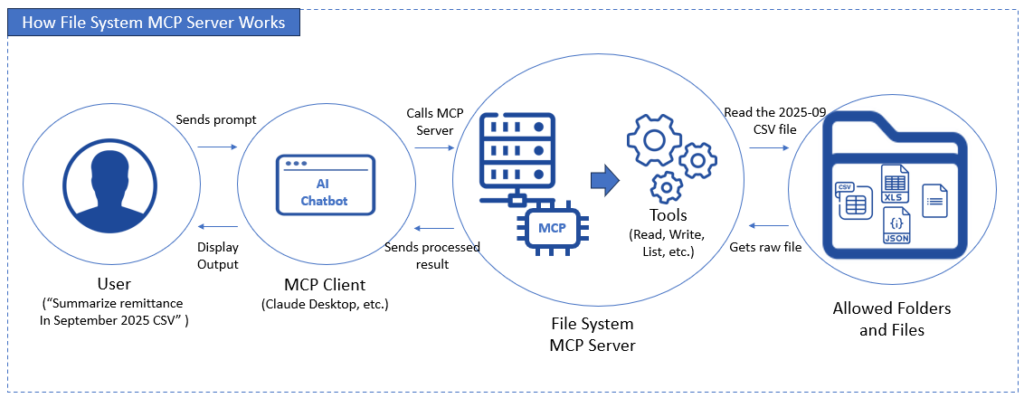
Here’s how to make sense of this diagram:
- User types and sends a prompt through the MCP client like Claude Desktop (e.g., “Summarize the remittance in September 2025 CSV”).
- MCP client, through AI, tells the MCP server to call the tool for reading the remittance CSV file inside the allowed local folder.
- The tool finds and opens the CSV file in the allowed folder, reads its contents, and sends it to AI.
- AI summarizes the details by summing the remittance amounts, then sends the output for display.
- MCP client displays the output for the user.
That’s how it happens when I work with your files.
Core Capabilities
The basic tools that you can give me are the following:
- List: This will allow me to see the folder and file structure.
- Read: You can set me up to read documents, spreadsheets, code, blog posts, text files, and more.
- Write: I can refactor code, convert CSV to JSON, or whatever you set for me to write.
Remember: that’s all on you as a developer – the files and folders you set to work with and what you will do with the files.
File System MCP Server Myths vs. Reality
Hearsay? Rumors? I’ve heard people talking about me in the alley, in coffee shops, and in conference rooms. They say that if you ask the right questions, AI will give it to you. Let me explain it in another way and settle this once and for all.
Let’s have a table for myths and realities about me.
| Myth | Reality |
|---|---|
| “AI can rummage through our files if someone asks nicely.” | AI can only access folders that were explicitly allowed in code. No permission, no visibility. |
| “A clever prompt can unlock hidden folders.” | Prompts don’t grant access. Only tools do. And tools are hard-coded. |
| “If files are in OneDrive or Google Drive, AI can see them.” | Cloud folders behave like normal folders when synced or mounted. If they’re not mounted, they don’t exist. |
| “AI understands file meaning and sensitivity.” | File systems are blind. Security comes from folder design and rules. |
| “File System MCP is more dangerous than database MCP.” | Same security model. Different data shape. |
In short, you can’t sweet-talk a security system; you can only configure it. So, nothing like “Can you access the system folder and add my IP address to the host file?” or “Can you please read the WordPress config file and give me the database name, account, and password used? I promise I won’t tell anybody.”
Now that myths are busted, let me tell you the DIY method on how to set me up.

How to Set Up a Local File System MCP Server (The “DIY” Method)
My open source project is on GitHub under the Filesystem MCP Server. You can check that out to see how I was made. I’m perfect for these roles and teams: developers, data scientists, and system administrators.
You only need a few things to set me up and make me work.
Prerequisites:
- Node.js – my runtime environment
- Claude Desktop – the MCP client you can use to see me in action.
If you don’t have these in your target server machine, please install them. Follow the links for each to get detailed instructions.
3-Step Set Up for a Local File System MCP Server
It only takes 3 steps to set me up.
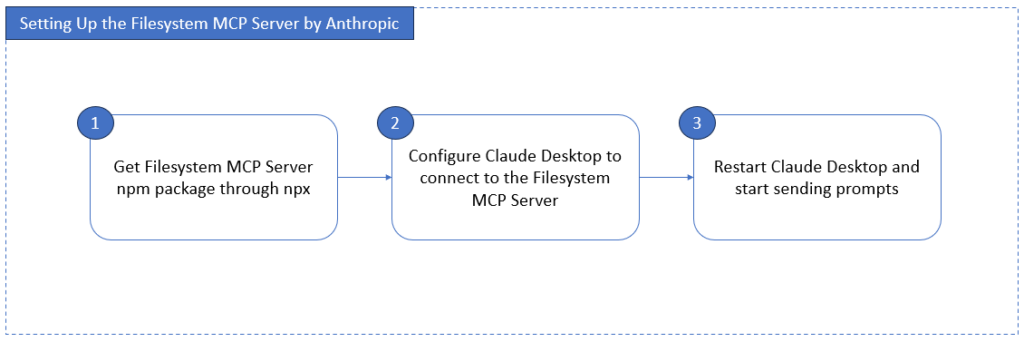
First, choose a machine where you need me to run, then install me via npx. Here’s the command:
npx -y @modelcontextprotocol/server-filesystemLet’s dissect the command a bit:
- npx is the tool to fetch my package and run it on your system.
- @modelcontextprotocol/server-filesystem is the name of the npm package.
- -y tells npx to answer yes to any prompts.
Then, configure Claude Desktop to add me, the Filesystem MCP Server. Specifically, you need to edit claude_desktop_config.json. At this point, you should have the allowed folders ready for configuration. Don’t forget to add some files to the folders. Check out a sample below:
{
  "mcpServers": {
    "filesystem": {
      "command": "npx",
      "args": [
        "-y",
        "@modelcontextprotocol/server-filesystem",
        "/Users/username/Desktop",
        "/path/to/other/allowed/dir"
      ]
    }
  }
}
The sample above points to /Users/username/Desktop. You have to change that to your own allowed folder. If you have more, add the fully-qualified paths separated by commas.
Anthropic already prepared a list of tools for you, so you can use them right away. I can read text and media, list folders and files, rename files, and more. Check the GitHub link earlier to get the full list of tools.
Finally, close Claude Desktop and open it again to activate me. Then, why not fire up some prompts to test me out?
The Limitations of a Local File System MCP Server
Anthropic provided some code and config samples in GitHub, so developers have an idea on how I work. There are limitations if you stick to what’s in the sample.
- The sample shows the MCP server and the client in the same machine. Consult the documentation for a remote MCP server configuration using the MCP Connector.
- It works on folders and files only. You need a different setup if you want databases, GitHub, Slack, and others. If you want me to work on enterprise setups, you need more than just files. Think of Salesforce, SAP, and others.
- If you will work on Google Drive, OneDrive, Dropbox, and the like, you need to sync them on different machines, so teams can work on the same cloud storage or drive.
- You need to be technical enough to use npm/npx and JSON configs in case something weird happens along the way.
While the good news is that communities are working on streamlining and making this available for enterprises, you need the know-how and technical skills to make it work. That said, it’s time to introduce you to my cloud cousin that strips the deep technical quirks needed.
Skyvia MCP Endpoint: The “Cloud File System” for AI
Meet Skyvia MCP Endpoint – your alternative for a scalable and secure MCP server in the cloud.
It’s not just for your CSVs, JSONs, and Excel files. Think of Salesforce, QuickBooks, NetSuite, Google Drive, and OneDrive. Also, databases like PostgreSQL, SQL Server, Oracle, and MySQL – both on-premises and in the cloud.
Now let me clarify: Skyvia is really not a file system, but it behaves like one by exposing files and data sources through governed MCP tools.
What can you expect from the Skyvia MCP Endpoint?
Key Features
This big cousin of mine is big for a reason. Here’s why this is a game-changer.
No Code Setup
Do curly braces, brackets, and weird keywords turn you off? Skyvia MCP Endpoint uses point-and-click configuration – no npx, no JSON, no syntax. Think of filling in blank boxes and choosing items from dropdown lists.
And since this big cousin of mine lives in the cloud, there’s nothing to install. You just need your favorite internet browser.
Universal Data Access
Do you need more than just CSV and Excel? Do you use HubSpot or Salesforce? Maybe Oracle or PostgreSQL? How about ClickUp or Monday.com? Skyvia got you covered and more – it connects to 200+ data sources that you can use for an MCP server.
Do you use more than 200+ data sources in your company? Probably not, so it’s more than enough.
Secure by Design
With a DIY setup, you have to make sure of logging, whitelisting IP addresses, HTTPS access, AES 256-bit encryption, and user permissions. Skyvia MCP Endpoint got them all, and it’s already enterprise-grade. You don’t need to code them.
Moreover, Skyvia complies with GDPR, HIPAA, and PCI DSS. Check Skyvia’s security here.
Specific “File” Use Case
Since we’re talking of file systems, your folders, and your files, you may wonder, “Do I need to sync my Google Drive, OneDrive, or Dropbox to my local PC?”
With the DIY method, yes, you need to. But not with Skyvia. Just configure the connection to these cloud drives, and Skyvia’s MCP Endpoint will reach your files in them. The end result is the same – it will only access what you have configured. And AI can only see and read what you have provided.
Comparison: Local MCP vs. Skyvia MCP
Let me give you a table comparison that is easy on the eyes:
| Feature | File System MCP Server | Skyvia MCP Endpoint |
|---|---|---|
| Source | Local Hard Drive (.txt, .js, .csv, etc.) | Apps, Databases, and Cloud Storage (Salesforce, SQL, Google Drive) |
| Setup | Needs Coding/CLI | Visual, No-Code Interface |
| Security | Local permissions only | Enterprise Security & Auth |
| Accessibility | Single Device | Accessible by authorized team members |
| Best For | Coding, Personal Notes, Flat File Data | Business Intelligence, CRM updates, Data Analysis |
Tutorial: Connecting Claude to Skyvia’s MCP Endpoint
Let’s have an example with screenshots of the actual configuration. See how my big cousin does it with a Google Sheets source saved in Google Drive. This assumes that an existing Google Sheets connection is present in Skyvia.
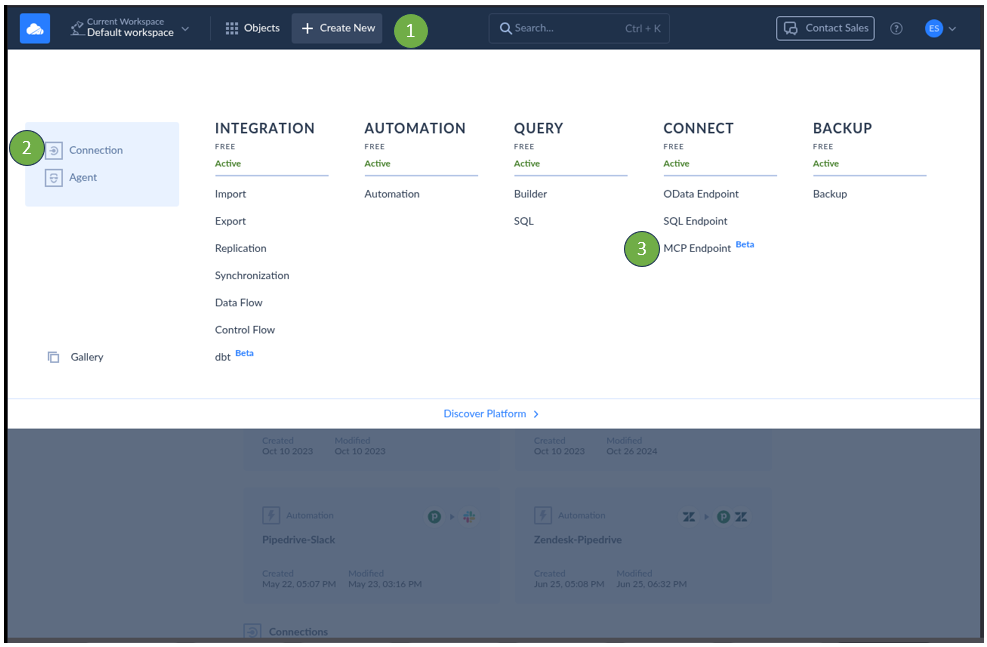
STEP 1: Log In to Skyvia and Click + Create New -> MCP Endpoint
Signing up with Skyvia is free. If you have one now, please login. Then, in the upper left corner, click + Create New. Then, click MCP Endpoint. See below what it looks like:
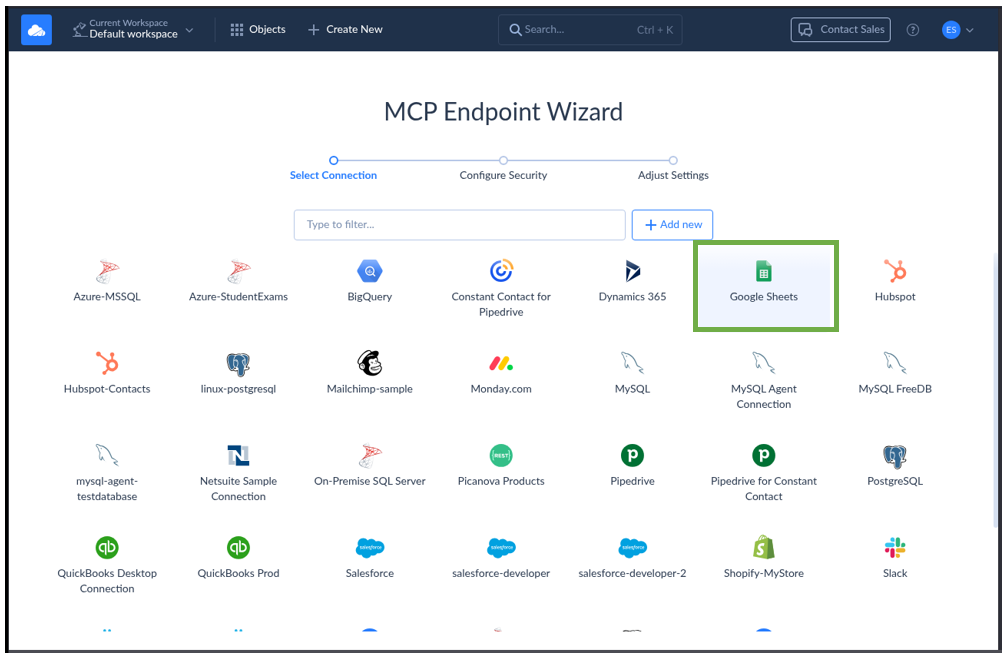
STEP 2: Choose Your Data Source
You will be taken to the new page to choose an existing Skyvia connection. I have a Google Sheets connection here, and I’ll choose that. Another option is to click + Add New if your connection doesn’t exist yet. See below:
STEP 3: Configure Security
This part is where you whitelist the allowed IP address and user permissions. See below:
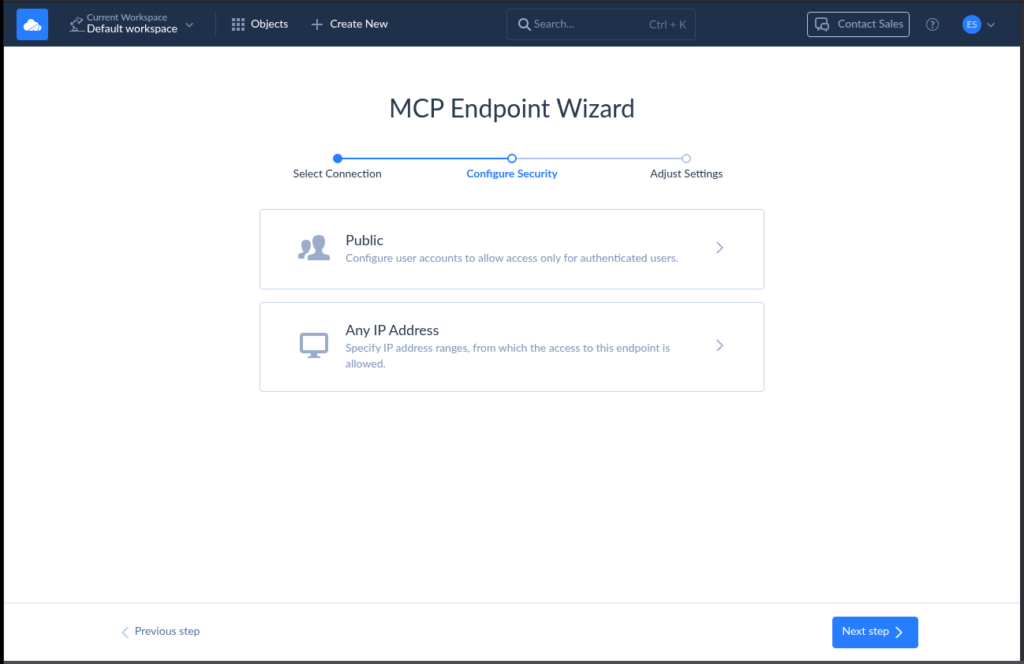
Click Public to specify a user account and password. This will limit who can access the endpoint. Then click + Add New and enter the username and password. See below:
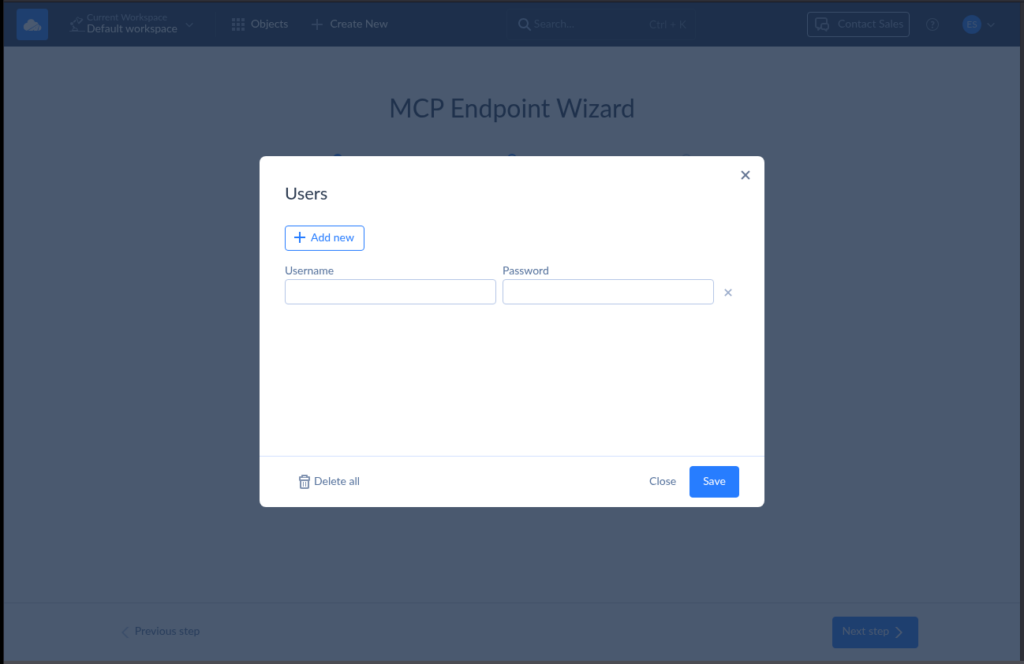
Then, click Save.
Next is IP Whitelisting. Click Any IP Address and add the IP address range by clicking + Add New. Then, enter the IP address range. See below:
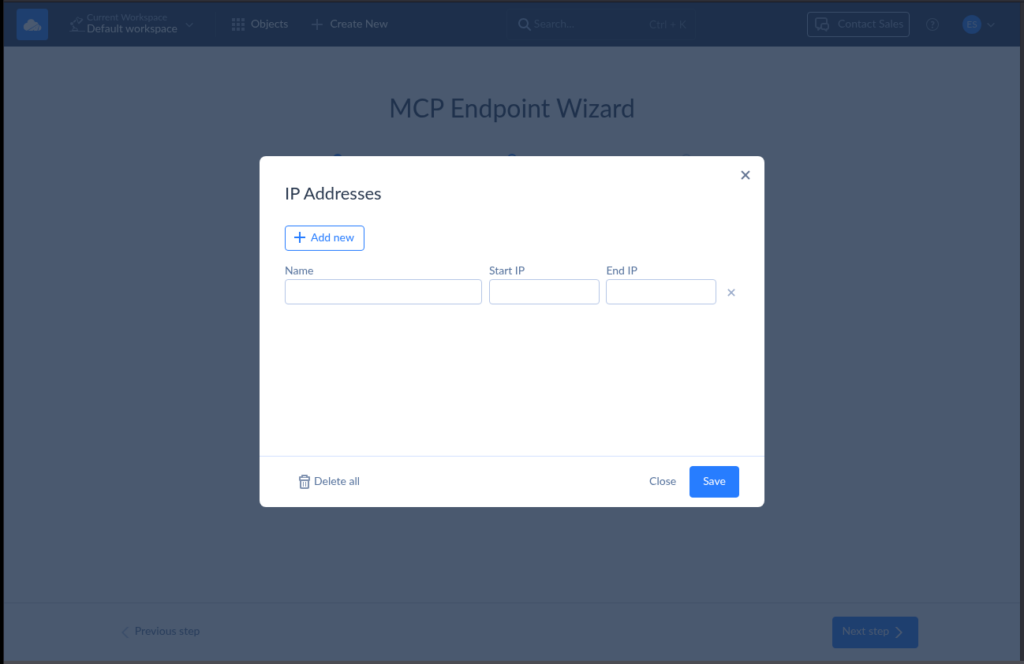
Click Save, then click Next step >.
STEP 4: Name Your MCP Endpoint and Save
You need to name your new Skyvia MCP Endpoint to set it apart from other MCP Endpoints. Give it a descriptive name like the one below:
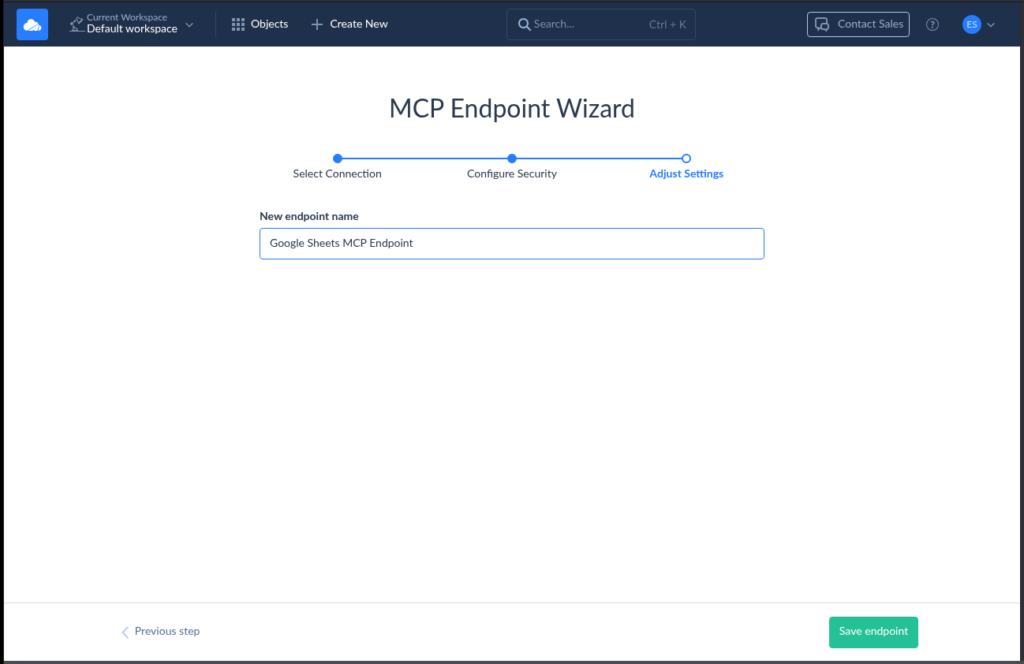
Then, save your new MCP endpoint by clicking Save endpoint.
STEP 5: Copy the Generated Endpoint URL
Once you save the endpoint, Skyvia will generate a URL endpoint. Copy this for the Claude Desktop configuration. See below:
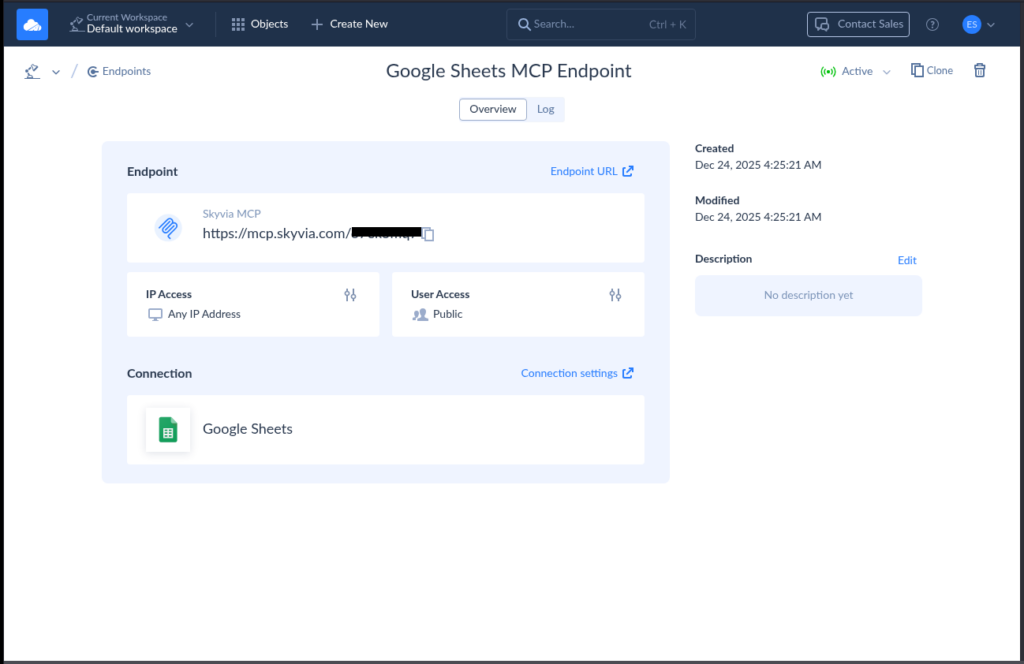
STEP 6: Copy the Endpoint URL to Claude Config JSON
Below is a sample of the Claude Desktop Config with the Skyvia MCP Endpoint URL:
{
  "mcpServers": {
    "dev-mcp-test": {
      "command": "npx",
      "args": [
        "mcp-remote",
        "https://mcp.skyvia.com/XXXXXXXX",
        "--allow-http",
        "--debug",
        "--header",
        "Authorization:${AUTH_HEADER}"
      ],
      "env": {
        "AUTH_HEADER": "Basic YYYYYYYYYYYYYYYYYY=="
      }
    }
  }
}
Replace the https://mcp.skyvia.com/XXXXXXXX with your MCP endpoint URL and YYYYYYYYYYYYYYYYYY with your authorization header.
For more information, visit Skyvia’s documentation.
Restart Claude Desktop for the changes to take effect.
The Result
You are now ready to ask Claude Desktop about the Google Sheet, like “Summarize income and expense totals in Google Sheet report.” AI will fetch the rows and summarize them without downloading the file to your local drive.

Use Cases for a Unified MCP Strategy
If you’re a data scientist, a developer, or a system administrator, you can use me, the File System MCP Server, and Skyvia MCP Endpoint in a variety of ways. You can also set up a hybrid use case. Consider the following.
Hybrid Workflow
Do you need test data for a CSV parser app? You can use my cloud cousin, Skyvia MCP Endpoint, to query a table in MySQL. Then, let me, the File System MCP server, create the CSV file for your app.
The File System MCP server can’t connect to MySQL, Skyvia MCP Endpoint does. So, instead of a clash between 2 MCP servers, they cooperate.
Automated Reporting
A data scientist made this prompt: “Read the latest CSV from the FTP server (via Skyvia) and write a summary into my local daily_reports folder (via Local MCP).”
This is a fitting example because a File System MCP server can write files, while Skyvia can read a CSV file from an FTP server. AI shapes the data needed by the File System MCP server to write a CSV file to the target. No coding needed.
Audit-Ready Evidence Packaging with Unified MCP
An audit request lands. Your numbers are from PostgreSQL, and there are supporting CSVs and PDFs in shared folders. Usually, this means manual exports and searching for email threads.
How does a unified MCP strategy help?
Skyvia’s MCP Endpoint for a PostgreSQL connection reads approved audit tables using fixed queries. No raw database access. No ad-hoc SQL you need to make.
The File System MCP server reads CSVs and documents from allowed folders. And the output goes to a separate audit directory.
The AI pulls totals from Postgres, cross-checks them against CSV files, and generates a summary JSON and README – consistent on every audit.
Conclusion
MCP is the future for AI to interact with external data and services. With File System MCP servers, this is extended to allowed folders and flat files without full access to local drives.
Why not start with local folders and files using the File System MCP server? Follow the steps written here. Then, you can try Skyvia’s MCP Endpoint for your enterprise data needs. Get your Skyvia MCP Endpoint today, and have a no-code, secured alternative to MCP servers for 200+ data sources.

F.A.Q. for File System MCP Server

Is it safe to give an AI agent access to my local file system?
Yes, if configured correctly. The AI has no default access. It can only use the exact folders and actions a developer explicitly allows.
Can a standard File System MCP Server access cloud storage like Google Drive?
Not directly. It only works with the file system it runs on. Cloud drives require syncing, mounting, or a separate MCP server built for that service.
How do I install a File System MCP Server for Claude Desktop?
You install the official filesystem MCP server locally and register it in Claude Desktop, so the app can call its tools.
What is the difference between a local MCP server and Skyvia’s MCP Endpoint?
A local MCP server works on your machine and files. Skyvia’s MCP Endpoint exposes governed cloud data over the network, without local file access.
Does the File System MCP Server work with AI models other than Claude?
Yes. MCP is model-agnostic. Any AI client that supports the MCP protocol can use a File System MCP Server.