If you’ve been relying on QuickBooks as the center of your financial universe, you’ve probably felt its limits by now:
- Reports that take too long.
- Exports piling up.
- Numbers that don’t always line up.
- Friction right when you need clarity.
That’s usually the moment businesses start looking for something sturdier to support real analytics.
Connecting QuickBooks to BigQuery gives companies what QuickBooks alone can’t: one unified home for all financial data, automated updates instead of manual exports, custom reporting that bends to the business, and enough analytical power to run forecasting models. Let’s go even further and mix in CRM data, marketing spend, inventory metrics, whatever you want, and now your financial decisions stop living in a vacuum.
In the pages ahead, you’ll see precisely how to make it happen, without stress, without hastily concocted fixes, and without turning your finance team into part-time data engineers.
Table of Contents
- The Strategic Advantages of Integrating QuickBooks and BigQuery
- 3 Proven Methods to Integrate QuickBooks and BigQuery
- Real-World Applications of QuickBooks and BigQuery Integration
- Conclusion
The Strategic Advantages of Integrating QuickBooks and BigQuery
BigQuery is the natural upgrade path for anyone using QuickBooks and tired of chasing scattered spreadsheets or switching between apps just to get a clear financial picture. It’s the financial nerve center that QuickBooks can’t be, no matter how many add-ons you buy.
Sure, warehouses like Snowflake or Redshift can store QuickBooks data just fine, but BigQuery tends to feel like the smoother ride. For teams already living in the Google Cloud universe, choosing BigQuery isn’t just convenient. It’s the option that makes everything snap together without friction.
Now, let’s see in detail why this integration makes so much sense.
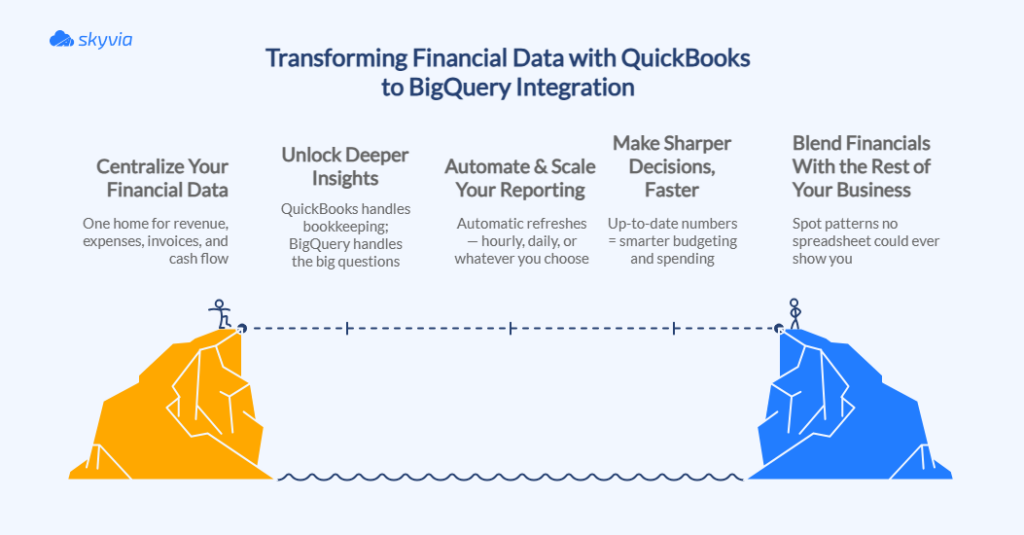
Centralize Your Financial Data
When your revenue, expenses, invoices, refunds, and cash flow are scattered across exports, emails, and different QuickBooks accounts, you never get the full picture, just puzzle pieces and probably no box with a reference.
Moving everything into BigQuery creates a single, trustworthy home for all financial activity. No more data silos. No more version mix-ups. Just one consistent source you can audit, back up, and refer to.
Unlock Deeper, Actionable Insights
Once your QuickBooks data lands in the data warehouse, you can explore trends that QuickBooks alone can’t surface:
- Who pays late and how late?
- Which products quietly burn through margins?
- Where is cash really flowing, not just where you think it is?
And because BigQuery lets you run complex SQL at ridiculous speeds, you can dig into customer behavior, revenue patterns, and historical financial performance with the same ease you’d usually reserve for a simple lookup.
Automate and Scale Your Reporting
If your current reporting process involves exports, CSV cleaning, and spreadsheets held together by hope, BigQuery fixes that.
Automated pipelines keep your financial data fresh without manual effort. Whether you sync hourly or once a day, reports stay fresh. And as your business grows from “modest QuickBooks file” to “thousands of invoices a week,” BigQuery scales instantly.
Enhance Data-Driven Decision-Making
Reliable data always means good decisions. In fact, all those integrations are a fight for data that can be trusted.
When you link QuickBooks to BigQuery, your dashboards quit lying, your forecasting finally lines up with reality, alerts catch issues before they spread, and scenario planning uses facts instead of hopeful assumptions. Budgets become documents you can trust. You’re moving money and people around based on what’s real, not what you’re crossing your fingers about.
Combine Financial Data with Other Sources
Your financials don’t live in a vacuum, so your analytics shouldn’t either. With BigQuery, you can blend QuickBooks data with:
- CRM activity (Salesforce, HubSpot, Zoho, etc.).
- Marketing platforms (Google Ads, Marketo, Mailchimp, etc.).
- Inventory and ERP tools (Microsoft Dynamics 365, Acumatica, Cin7 Core Inventory, etc.).
- Customer support systems (Freshdesk, Help Scout, Zendesk, etc.).
- Product usage data tools (Google Analytics / Google Analytics 4, FullStory, etc.).
Suddenly, you can connect the dots no spreadsheet could handle:
- Which campaigns improve cash flow?
- Which customer segments cost more to serve?
- How do refunds correlate with support tickets or product issues?
It’s a full-view analysis that makes siloed reporting feel ancient.

3 Proven Methods to Integrate QuickBooks and BigQuery
Maybe you’ve been dragging CSVs across your desktop. Perhaps someone on your team muttered, “We could just build it ourselves” with suspicious confidence. Or maybe you’re finally ready for something that works. Having options is great, yet not all of them are created equally.
Three paths ahead:
- One for people who think Stack Overflow is fun bedtime reading.
- One for humans who just want results without the circus.
- One for anyone who already has enough problems.
Figure out yours based on your tech level, what you can afford, and whether you enjoy this kind of thing. Let’s go.
Method 1: The Manual CSV Export
Best for
- Small datasets that don’t change often.
- One-off or occasional transfers.
- Teams that want zero setup, zero scripts, and zero new tools to learn.
- Businesses that need a temporary solution while still choosing more automated options.
Step-by-Step Guide
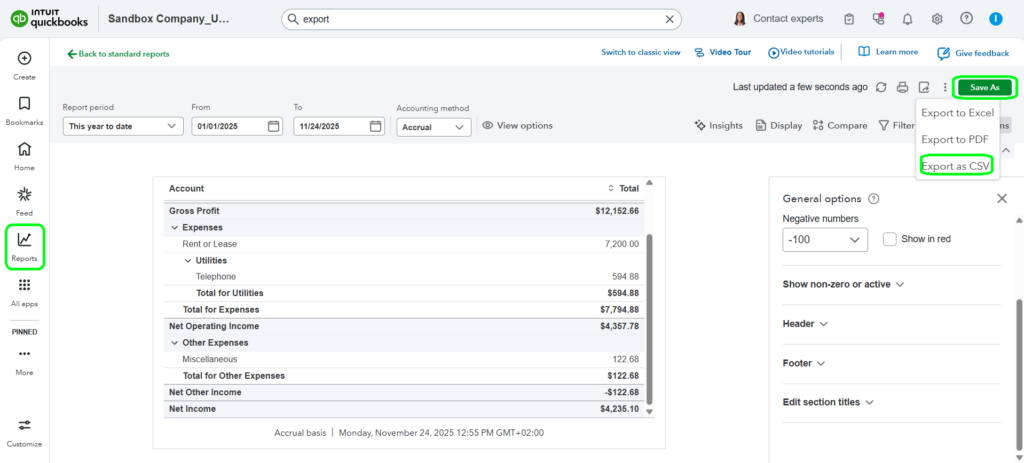
STEP 1: Exporting Data from QuickBooks as CSV Files
- Go to reports, choose the one you need (Standard or Custom), create it, then click Save As, and choose Export as CSV (or whatever you need).
STEP 2: Loading CSV Data into BigQuery.
For the full rundown on BigQuery loading strategies, we’ve got you covered.
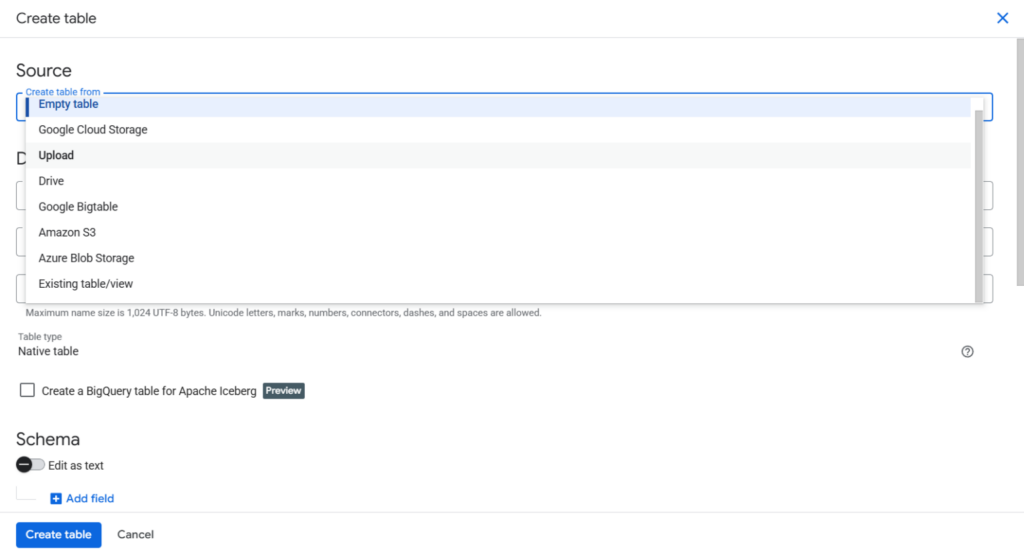
Note: BigQuery requires a dataset before you can import anything.
- Navigate to your BigQuery dataset, click Create Table on the right.
- Pick Upload under Source if the file is on your local drive (use a different option if it lives in cloud storage). Fill in the rest, and click Create Table when you’re ready.
Pros
- Completely no-code; anyone who can download a file can do it.
- Free to use, since you’re not paying for additional connectors, pipelines, or automation.
- Keeps things simple: export, upload, done.
Cons
- Doesn’t scale. Every refresh is another manual export and upload.
- No automation, meaning your BigQuery data is always a step (or several steps) behind.
- Easy to introduce errors through formatting mistakes or misplaced files.
- Raw data arrives as-is; no transformations or cleanup on the way in.
- You’ll likely need to fix schema mismatches yourself in BigQuery.
- Eats up operational time that could be spent on actual analysis.
Method 2: Using APIs for a Custom Integration
If you’re the type who needs your fingerprints on everything, APIs are where it’s at. QuickBooks gives you the keys to its REST API, BigQuery’s got the pipeline ready, and the rest is however you want to wire it up. Just know you’re also signing up to take care of this thing forever.
Best for
- Teams that want QuickBooks data to show up in BigQuery on its own, not after someone exports CSVs.
- Companies with developers who’d rather shape an integration around the business than twist the business around a rigid template.
- Finance and analytics teams that need numbers close to real time, not “whenever someone remembers to upload the file.”
- Organizations planning to plug QuickBooks into a broader data platform, not just one-off reports.
Step-by-Step Guide
To avoid flying blind, start by reading the QuickBooks API and BigQuery API documentation.
You authenticate with QuickBooks, pull the data you need through their REST API, reshape it into something BigQuery likes, and then push it in using BigQuery’s load or streaming endpoints. The concept is simple – the execution takes planning according to your specifics. Every detail has tremendous power here.
Pay close attention to a few moving parts:
- When planning data movement, keep API rate limits in mind as they can cut your sync short. QuickBooks caps requests aggressively, so your script must pace itself. BigQuery also has quotas for load jobs and streaming inserts. Push too fast, and both will politely tell you to slow down.
- Remember that large datasets require careful pagination. QuickBooks returns financial data in pages. Miss a page, and you’ll spend hours wondering why an account’s history suddenly has gaps.
- Update logic that handles inserts, edits, and deletes. QuickBooks doesn’t push notifications when older records change. Your workflow needs incremental logic to keep BigQuery in sync without duplicating half of your database.
Pros
- Handles incremental updates cleanly, so BigQuery stays almost in step with what’s happening in QuickBooks.
- Let’s you be picky: pull only the fields and records you actually care about instead of dragging whole tables across.
- Scales from “handful of invoices” to “we run billing all day long” without changing the basic approach.
- BigQuery’s not here to judge your life choices. Nested fields, repeated values, STRUCTs, ARRAYs – it takes them as they are.
Cons
- You need engineers who are comfortable with APIs, auth, pagination, and all the unglamorous bits.
- Ongoing maintenance that never fully goes away. APIs change. Endpoints get updated. New fields appear. Error responses grow new cousins. And someone has to keep an eye on everything.
- Initial build isn’t instant: schema mapping, error handling, and monitoring all take time to do right.
Method 3: No-Code/Low-Code Integration Platforms
For most teams, the goal isn’t to become experts in QuickBooks APIs or become the fastest CSV gun in the West. It’s to get clean, reliable data into BigQuery. That’s exactly where no-code and low-code platforms come in. They spare you from building integrations line by line and let you set up the whole thing through a clean, visual interface.
That is also the point where Skyvia fits naturally into the story. Connectors for QuickBooks and BigQuery already exist, so you skip the part where you build integrations from scratch. Just point at your source, point at your destination, map whatever fields matter, and decide on sync frequency. Everything backstage – authentication headaches, schema changes, scheduling mechanics – gets handled automatically instead of becoming your problem when it’s time to leave the office on Friday.
Best for
- Teams that want QuickBooks data flowing into BigQuery without turning the whole thing into an engineering side project.
- Businesses without a full-time developer team. Finance, ops, or analysts can create and maintain the integration themselves instead of waiting in an IT queue.
- Simple, repeatable pipelines where you just need invoices, payments, or vendor data synced on a schedule.
- Companies that want built-in safeguards. Most no-code tools ship with automatic retries, alerting, monitoring, and visual logs that remove a lot of “did it run?” panic.
- Teams that prefer clear, predictable pricing. Subscriptions and usage-based plans make budgeting easier than estimating how many developer hours a custom build will consume.
- Organizations that don’t want to track every API update like a hawk. Connector providers handle the maintenance, which means fewer surprises and fewer broken workflows.
Step-by-Step Guide
STEP 1: Create Connections
- Sign in or create a Skyvia account. It’s free, and once you’re in, you can start building immediately without waiting for approvals or payment processing.
- Click +Create New → Connection, find BigQuery, and select it.
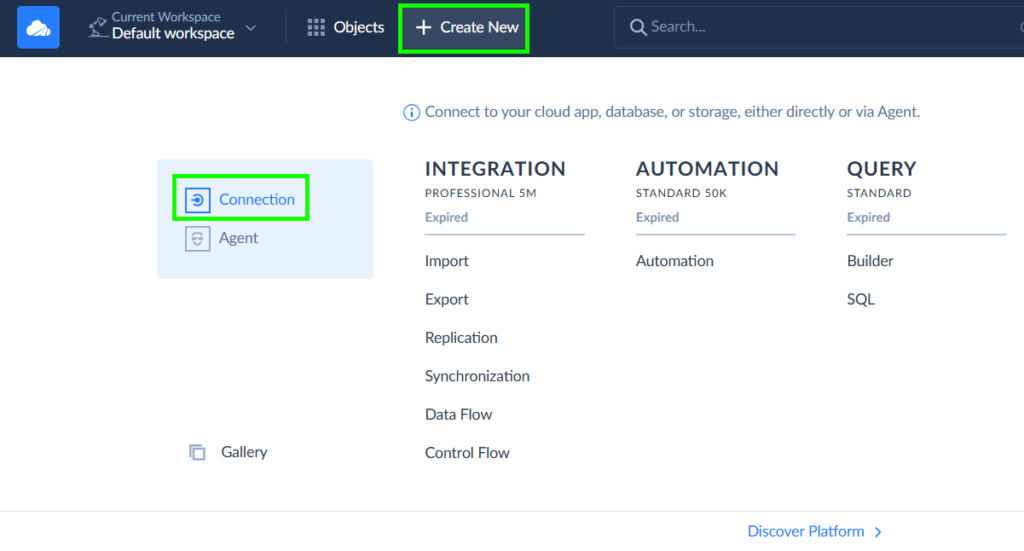
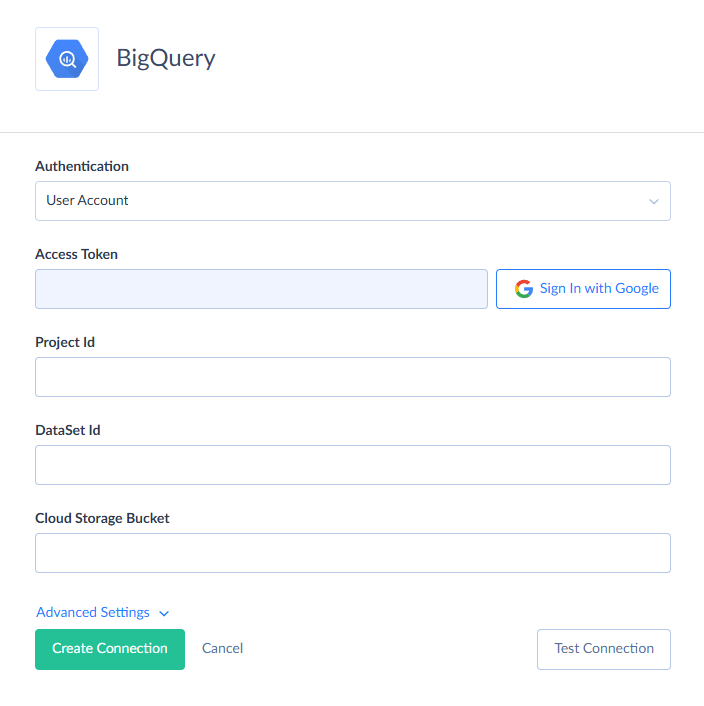
- Press Sign in with Google, work through the steps it throws at you, and enter your Project ID, Dataset ID, and Bucket. And don’t forget to name your new connection for easier navigation later.
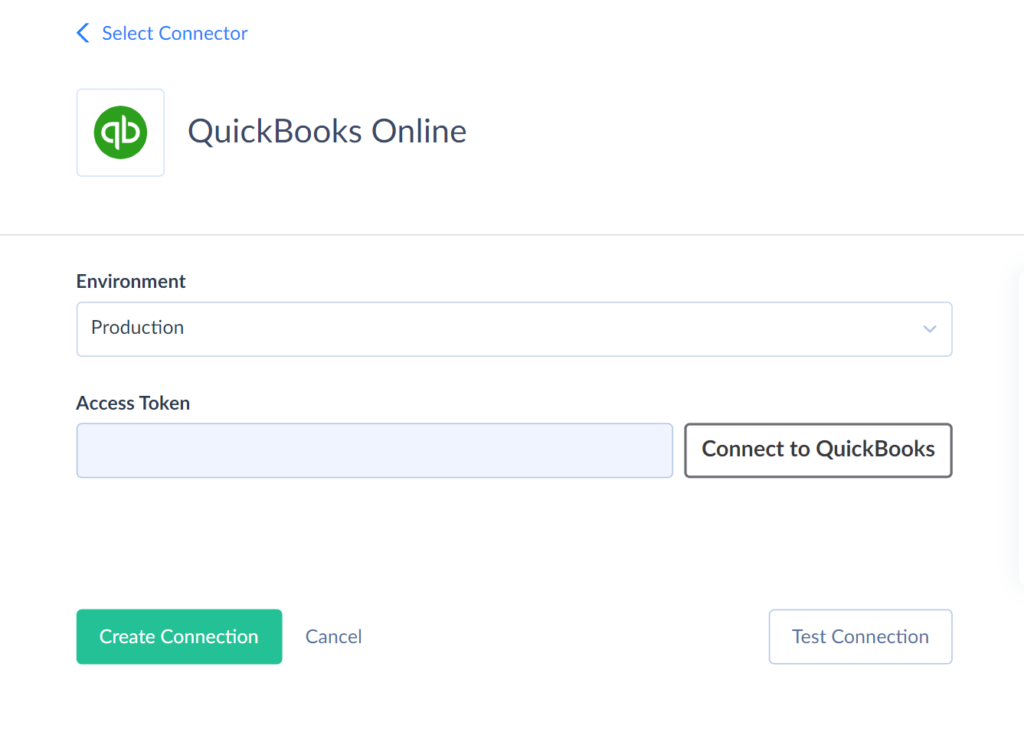
- Now, let’s create a QuickBooks connection. Once more, we return to the +Create New → Connection combo. Find QuickBooks using the search panel and click on it.
- On the Connection Editor page, choose your environment. Click Connect to QuickBooks, provide your login details, and press Sign In. QuickBooks shows you a list of companies – pick what you need, wait until the token is generated, and then hit Create Connection.
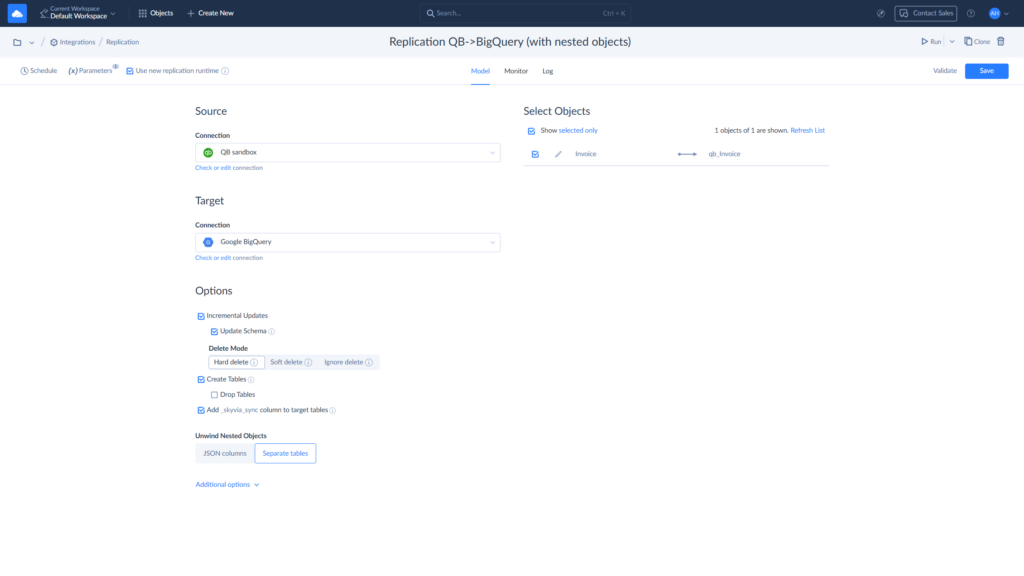
STEP 2: Create the Replication Integration
- Click +Create New and select Replication from the list. Select the Source – QuickBooks connection and the Target – BigQuery.
- Press Add task sitting on the right side to start your Replication. More details hide in the Replication overview if you need the full story.
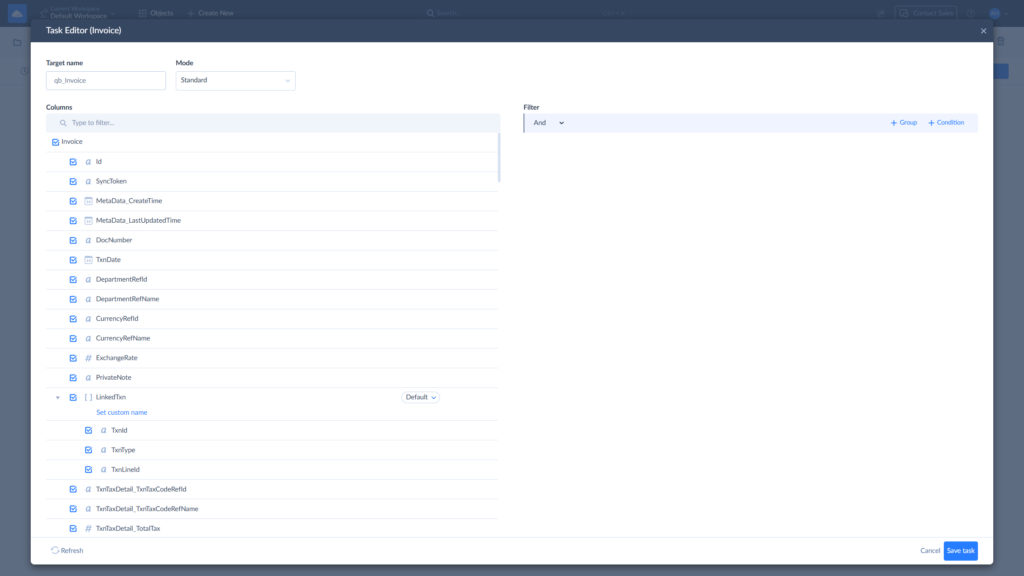
- In the Task Editor, select the QuickBooks objects you need in BigQuery. Then, click Save Task.
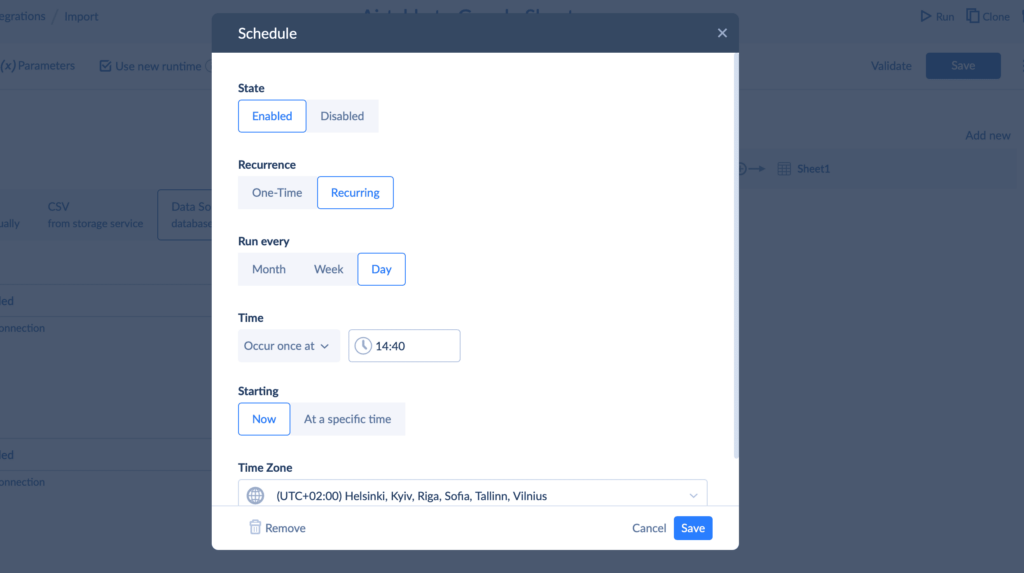
- You can schedule the Replication to run as often as needed. Just click Schedule on the Replication main page and set the needed parameters.
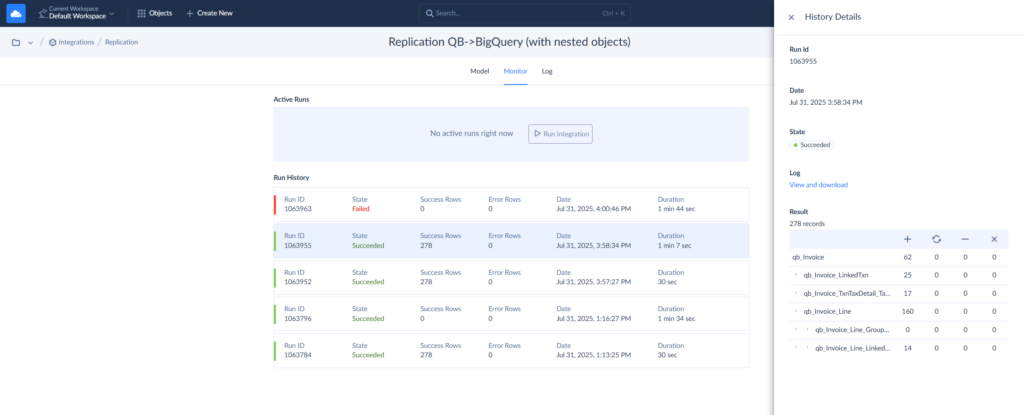
- You can check the integration results on the Monitor or Log tabs.
Pros
- Data flows run on their own, so you’re not stuck exporting, cleaning, and uploading batches by hand.
- Incremental syncs keep BigQuery aligned with QuickBooks updates without unnecessary reprocessing.
- You can shape your API calls to bring exactly the data you want, no more “one-size-fits-all” exports.
- Custom logic gives engineering teams the freedom to fine-tune pipelines rather than work around tool limitations.
Real-World Applications of QuickBooks and BigQuery Integration
Real-world uses for connecting QuickBooks and BigQuery stretch across vital business territory, driven by the need to unlock deeper, scalable financial analytics, reporting, and data-driven decision-making.
Advanced Financial Reporting and Dashboards
Your finance data is no longer hostage, no longer stale. Drop it in an analytics warehouse, fire up some dashboards in Looker Studio, Power BI, or Tableau, and they’ll stay current without you doing much.
Customer and Sales Analysis
Send your QuickBooks transaction data into BigQuery, combine it with CRM insights, and suddenly you can see which customers drive profit, and which ones quietly chip away at it. This blend helps you track buying patterns, spot slow-paying clients, and understand where your sales team should focus their time. It’s a much cleaner way to separate loyal customers from the ones who treat “due date” as a suggestion.
Cash Flow Forecasting
BigQuery lets you crunch years of QuickBooks data in seconds, which makes forecasting far less suspenseful. With historical payments, invoices, and expenses in the same warehouse, you can build predictive models that estimate future cash flow with surprising accuracy.
Expense and Budget Analysis
BigQuery lets you see exactly where every department’s burning through cash, line up what you planned versus what happened, and stop cost creep before it turns into a cost avalanche. When all your bills, vendor payments, and POs end up in one place, you can dig into the details and figure out where you’re losing money, then do something about it.
Conclusion
Connecting QuickBooks to BigQuery isn’t just a technical upgrade. It’s how you turn disconnected transactions, invoices, and spreadsheets into something you can use to guide the business. We walked through the “why” (centralized data, deeper analysis, better reporting) and the “how” (CSV exports, custom API builds, and no-code platforms). Each method gets the job done, but not with the same level of sanity or scalability.
Manual exports are fine for one-offs. Custom integrations work when you have engineers who can maintain APIs for a living. But for everyone else, no-code platforms hit the bull’s eye: fast setup, automatic updates, and zero need to reinvent the wheel every quarter.
If you’re ready to turn your accounting data into something clear, current, and genuinely useful, Skyvia can get you there without detours. Curious how simple it can be? Try Skyvia’s QuickBooks to BigQuery integration for free and see the difference for yourself.

F.A.Q. for How to Connect QuickBooks to BigQuery

Do I need coding skills to integrate QuickBooks and BigQuery?
Not necessarily. No-code platforms let you set everything up through a visual interface, no scripts or engineering background required.
How is this integration different from just exporting a CSV file?
CSV exports are one-off snapshots. An integration keeps your data updated automatically, handles larger volumes, and lets you run real analysis instead of juggling downloads.
Is it secure to transfer my financial data from QuickBooks to BigQuery?
Yes, as long as you use trusted tools. Encryption, secure authentication, and role-based access keep your financial data protected throughout the pipeline.
How much does it cost to set up this integration?
Costs vary. Manual exports are free but time-consuming. No-code tools start with free tiers and modest paid plans, while custom API builds require engineering time.
Can I analyze data from multiple QuickBooks accounts in one place?
Absolutely. Once everything lands in BigQuery, you can merge, compare, and analyze data from different QuickBooks accounts side by side.