Summary
- Method 1: Google BigQuery Data Transfer Service: A native Google option that automates scheduled transfers into BigQuery, suitable for basic ingestion but limited in flexibility and cross-platform logic.
- Method 2: Custom Python Scripts & APIs: A developer-driven approach using APIs to extract Facebook Ads data and load it into BigQuery, offering maximum control at the cost of ongoing maintenance and engineering effort.
- Method 3: Skyvia: A no-code data integration platform that automates extraction, transformation, and loading from Facebook Ads to BigQuery with scheduling, monitoring, and minimal setup time.
While working in marketing, you’ve probably felt this:
- Ad spend sits in Facebook Ads.
- Conversion data lives in Google Analytics or BigQuery.
You’re stuck stitching numbers together in spreadsheets to calculate real ROAS.
The data exists — it’s just scattered. And until it’s in one place, your reporting is always half the story.
That’s why moving Facebook Ads data into BigQuery has become the industry standard for scalable reporting. Once everything lands in your warehouse, you can blend paid media data with CRM records, product data, or revenue numbers, build proper cross-channel reports, and finally see what’s actually driving results. From there, plugging into BI tools and spinning up dashboards becomes the easy part.
In this guide, we’ll break down three practical ways to get your Facebook Ads data into BigQuery:
- The “native” route using Google’s BigQuery Data Transfer Service.
- The manual, developer-heavy approach with custom scripts or CSV exports.
- The automated, no-code option with Skyvia.
Each method has its place. The key is choosing the one that fits your skills, budget, and long-term reporting goals — without turning data movement into your full-time job.
Table of Contents
- Why Move Facebook Ads Data to BigQuery?
- Method 1: Google BigQuery Data Transfer Service
- Method 2: Custom Python Scripts & APIs
- Method 3: Skyvia
- Matrix: Which Method is Right for You?
- Advanced Use Case: Joining Facebook Spend with GA4 Revenue
- Conclusion
Why Move Facebook Ads Data to BigQuery?
On its own, Facebook Ads does a decent job of reporting. But once you start asking bigger questions — cross-channel performance, attribution logic, long-term trends — you quickly hit the ceiling.
That’s where you need BigQuery to play this game.
Unified Reporting
Marketing rarely lives in just one platform. You’re probably running Google Ads, maybe LinkedIn Ads, and tracking behavior in GA4. When all that data lands in BigQuery, users finally get a proper cross-channel view. No more jumping between dashboards or reconciling numbers manually.
Overcoming Native Limitations
Facebook Ads Manager reports can be sampled, and historical retention isn’t unlimited. BigQuery gives companies granular, unsampled data with long-term storage. So, users can control how long they keep it and how deeply analyze it.
Advanced Analytics
Once the info is in BigQuery, SQL becomes the superpower. You can build custom attribution models like First Touch or Time Decay, combine ad data with revenue tables, and calculate metrics that simply aren’t available in the Facebook interface.
Visualization
BigQuery easily connects to BI tools like:
- Looker Studio.
- Tableau.
- Power BI.
That means interactive dashboards, stakeholder-ready reports, and a single source of truth instead of scattered screenshots from different ad platforms.
Method 1: Google BigQuery Data Transfer Service
For users that need to schedule automatic imports from advertising platforms, Google offers a native transfer service inside BigQuery. Instead of exporting CSV files, you configure a transfer once and let BigQuery pull the data on a schedule.
It’s the most “official” way to do it — fully inside Google Cloud.
How it Works
Setting up the BigQuery Data Transfer Service for Facebook Ads happens entirely inside Google Cloud. Here’s what the real process looks like.
1. Enable the BigQuery Data Transfer API
In your Google Cloud project, enable the BigQuery Data Transfer API. This allows BigQuery to pull data from external sources on your behalf. It’s a one-time setup step at the project level.
2. Create a New Transfer Configuration
Inside BigQuery, go to Transfers → Create Transfer.
As the source type, select Facebook Ads (if available in your region).
Then configure:
- Destination dataset: for example: marketing_facebook_ads.
- Display name: something like fb_ads_daily_sync.
- Schedule: every 24 hours.
You’ll also define the refresh window (how far back BigQuery should look for updates, e.g., the last 7 days).
3. Authorize Facebook Access
Next, sign in with the Facebook account and grant permissions. BigQuery needs access to your ad account(s).
And select the specific Ad Account ID you want to sync.
Note: This step often causes friction: expired tokens or permission mismatches are common issues.
4. Choose Tables and Confirm Settings
Review the configuration:
- Dataset.
- Region.
- Schedule.
- Linked ad account.
Once saved, the transfer runs on the defined schedule.
After that, BigQuery automatically creates tables such as:
- ads_insights
- campaign
- ad_group
- ad_creative
Each scheduled run appends or updates data based on the refresh window.
No CSVs. No manual uploads.
Note: Once configured, the pipeline runs automatically — but with one important caveat: the minimum refresh interval is typically 24 hours. That means this setup is designed for daily reporting, not real-time optimization.
Pros
- Native integration inside Google Cloud.
- Automated scheduled transfers.
- No need to manage external infrastructure.
- Simple initial setup for basic use cases.
Cons
- Rigidity: You largely get the structure Google provides, which limits flexibility if you need custom transformations. but can’t easily customize the schema.
- Latency: The minimum refresh interval is 24 hours. So, near real-time reporting isn’t possible. For performance marketing teams making daily bid decisions, this is a serious limitation.
- Backfilling Issues: If schemas change or fields are added, backfilling historical data can be difficult. This is a common frustration raised in developer forums.
- Errors: Token expiration, authorization failures, or INVALID_ARGUMENT errors can occur and often require manual reauthorization or troubleshooting.
Verdict
The BigQuery Data Transfer Service works for basic reporting needs and simple scheduled ingestion.
But for serious data teams that need flexible schemas, faster refresh cycles, or reliable historical backfills, it often feels too rigid and slow for production-grade marketing analytics.
Method 2: Custom Python Scripts & APIs
This approach involves building your own pipeline using the Facebook Graph API and writing custom scripts, typically in Python, to extract data and load it into BigQuery.
On paper, it looks flexible and cost-efficient. In reality, you’re building and maintaining your own mini data platform.
Instead of relying on a managed connector, the team handles authentication, API calls, schema mapping, error logging, retries, and warehouse loading logic.
Pros
- Full control over what data you extract and how you structure it.
- Complete flexibility in transformation logic before loading into BigQuery.
- No license fees for third-party tools.
- Custom workflows tailored exactly to your reporting model.
Cons
- Maintenance Overhead: Facebook’s Graph API versions change frequently (v19.0, v20.0, and so on). When endpoints or fields are deprecated, scripts break. This can happen multiple times a year.
- Token Management: OAuth tokens expire. Handling refresh tokens securely and automatically requires additional logic. When something fails, it often requires manual intervention.
- Pagination & Rate Limits: The API enforces request limits. Properly handling pagination, throttling, retries, and backoff strategies means writing more complex and defensive code.
- Monitoring & Reliability: Users have to build their own logging, alerting, and failure recovery. If the script silently fails, your reporting simply stops updating.
- Scaling Complexity: What starts as a “simple script” can quickly grow into dozens of scheduled jobs, schema mappings, and maintenance tasks as reporting needs expand.
Verdict
DIY scripting is free in terms of software licenses, but not in practice. The cost shows up in engineering hours, ongoing maintenance, and operational risk. It’s viable for highly technical teams, but for most marketing-driven analytics setups, it becomes more effort than it’s worth.
Method 3: Skyvia
If Method 1 feels too rigid and Method 2 feels like a side engineering project, Skyvia sits right in the middle.
It gives users the reliability of an automated connector without the 24-hour delay of Google’s native service or the need to write code. You get scheduling, monitoring, transformations, and proper schema control, all in a visual interface.
Step-by-Step Guide
1. Connect
- Click + Create New → Connection, select the Facebook Ads connector, and authenticate with your account.
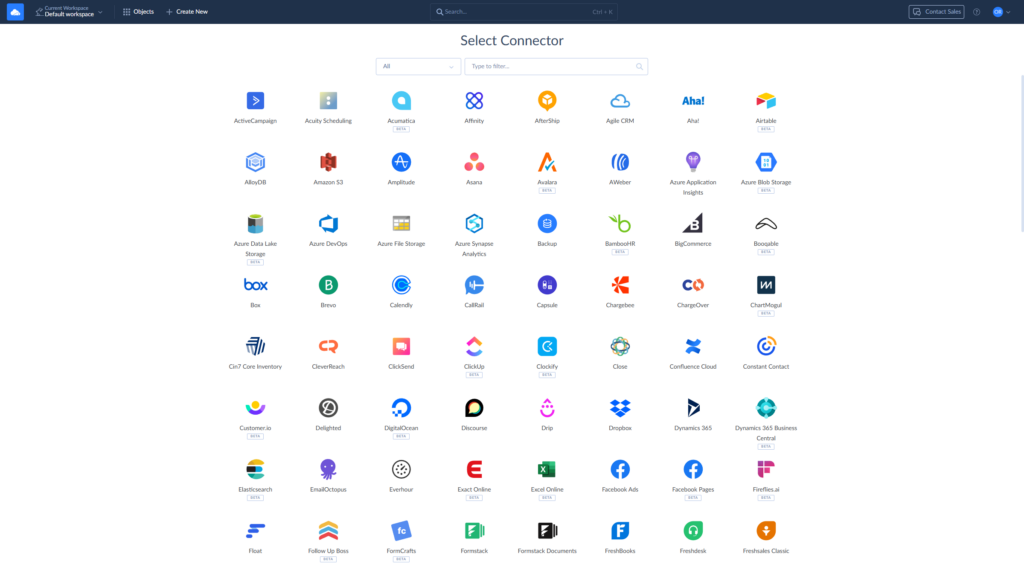
- Then create a BigQuery connection using your Google Cloud credentials and service account key.
Once both connections are set up, you’re ready to build the integration.
2. Select Data
Create a new Import or Replication package and choose Facebook Ads as the source and BigQuery as the target.
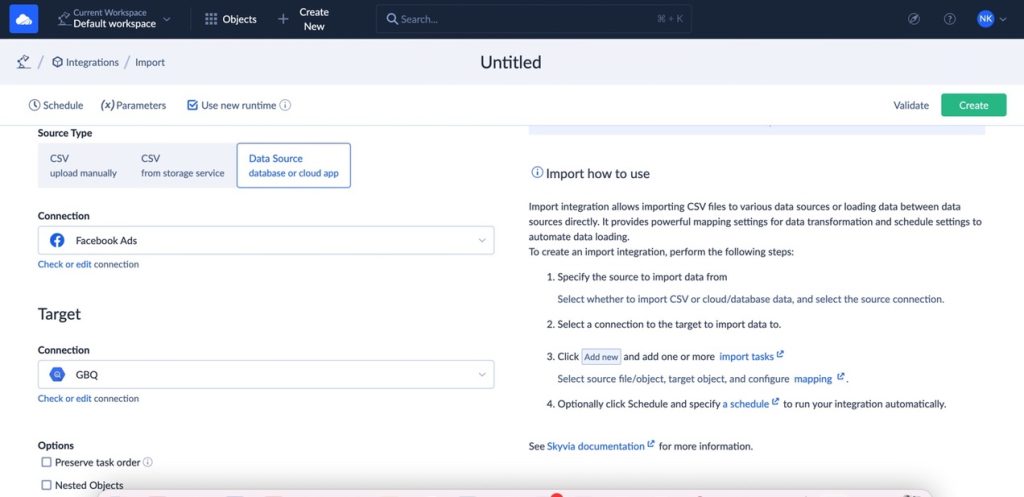
Unlike basic connectors, Skyvia automatically handles nested JSON structures coming from the Facebook API. Complex metrics, breakdowns, and hierarchical campaign data are unpacked and mapped cleanly into relational tables in BigQuery — no manual flattening required.
You can select exactly what you want:
- Campaigns
- Ad sets
- Insights metrics
- Creative data
Automatic field mapping is available, but you can customize it as needed.
3. Filter (ETL)
Here’s where things get practical.
You can apply filters before loading data into BigQuery. For example, you might exclude paused campaigns or limit data to the last months.

This reduces unnecessary storage costs and keeps your warehouse lean. Instead of moving everything and cleaning it later, you control what enters BigQuery upfront.
You can also add transformations, conditions, or calculated fields directly in the visual designer.
4. Schedule
Set the refresh rate based on your needs.
Skyvia supports refresh intervals as frequent as every n minutes (1, 2, 5, etc.) or every n hours (1, 2, 5, etc)., which is a major difference compared to Google’s typical 24-hour minimum.
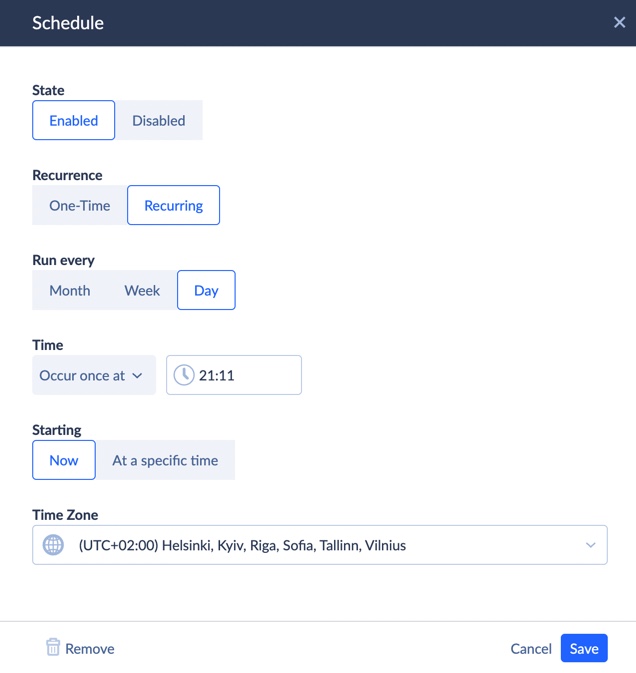
That means closer-to-real-time visibility for performance monitoring and budget optimization.
You can also trigger runs manually if needed.

Matrix: Which Method is Right for You?
Each method solves a different problem. The real question isn’t “which works?” — they all work. The question is how much time, flexibility, and control you need.
Here’s the comparison:
| Feature | Google Data Transfer (Native) | Custom Python Script | Skyvia (Automated) |
|---|---|---|---|
| Setup Time | Fast (~15 min) | Slow (Dev setup required) | Fast (~10–20 min) |
| Data Freshness | Low (24h minimum) | Depends on your code | High (from 1, 2, 5 minutes) |
| Maintenance | Medium (token & config issues) | High (API updates, scripts break) | Low (fully managed) |
| Historical Backfill | Difficult | Manual & complex | Easy built-in backfill |
| Schema Flexibility | Rigid (limited control) | Full control | Flexible with mapping |
| Error Handling | Manual troubleshooting | You build it | Built-in monitoring |
| Cost Model | Google usage fees | Engineering time | Flat/usage-based pricing |
Advanced Use Case: Joining Facebook Spend with GA4 Revenue
Now that your Facebook Ads data is sitting in BigQuery alongside GA4 events, this is where things start to get interesting.
You’ve got spends in one table.
You’ve got revenue and conversions in another.
To calculate true ROAS, you need to bring them together — usually on a shared parameter like utm_campaign.
Let’s say you have:
- facebook_ads table with campaign_name, date, and spends.
- ga4_events table with utm_campaign, event_date, and purchase_revenue.
Here’s a simple example using a LEFT JOIN:
SELECT
    f.date,
    f.campaign_name,
    SUM(f.spend) AS total_spend,
    SUM(g.purchase_revenue) AS total_revenue,
    SAFE_DIVIDE(SUM(g.purchase_revenue), SUM(f.spend)) AS roas
FROM `project.dataset.facebook_ads` f
LEFT JOIN `project.dataset.ga4_events` g
    ON f.campaign_name = g.utm_campaign
    AND f.date = g.event_date
GROUP BY
    f.date,
    f.campaign_name
ORDER BY
    roas DESC;
A few things to note:
- We’re using a LEFT JOIN so we keep all Facebook campaigns, even if GA4 shows zero revenue. That way you don’t accidentally hide underperforming campaigns.
- SAFE_DIVIDE protects you from division-by-zero errors.
- You can easily extend this by grouping by channel, ad set, or even blending in CRM revenue for more precise attribution.
Once you start joining spends with actual revenue, reporting shifts from “how many clicks did we get?” to “which campaigns actually make money?” And that’s where BigQuery really earns its keep.
Conclusion
The “best” method always depends on:
- Setup;
- Team’s skills;
- Budget;
- How fast the company needs insights.
Some organizations are comfortable building and maintaining their own scripts. Others are fine with a basic daily sync inside Google Cloud.
But manual data work shouldn’t slow down any marketing decisions. If you’re spending hours exporting, fixing, and reconciling reports, that’s time you’re not optimizing campaigns or testing new ideas.
The goal is get your Facebook Ads data into BigQuery reliably, keep it fresh, and stop worrying about whether the numbers are up to date.
If you want automation without the engineering overhead, Skyvia makes it straightforward.
Ready to automate your Facebook Ads reporting? Start your free trial of Skyvia today and get your data into BigQuery in under 10 minutes.

F.A.Q. for How to Load Data from Facebook Ads to BigQuery

Can I get real-time Facebook Ads data in BigQuery?
Not with the native transfer service. It usually runs daily. To get near real-time updates, you need a custom pipeline or an automated tool that supports hourly refreshes.
How do I handle historical data backfilling when connecting Facebook to BigQuery?
You must configure a refresh window or manually re-run historical date ranges. Some tools simplify this with built-in backfill options and schema-aware reloads.
What happens to my BigQuery integration when Facebook updates its Graph API?
If you use custom scripts, API changes can break them and require updates. Managed connectors typically handle version upgrades automatically.
How do I handle nested JSON data from Facebook Ads in BigQuery?
You can flatten and transform it manually with SQL or scripts, or use integration tools that automatically unpack nested JSON into structured tables.
Is it expensive to store Facebook Ads data in Google BigQuery?
Storage is relatively inexpensive, but costs grow with large datasets and frequent queries. Filtering unnecessary fields and optimizing queries helps control spending.